Valheim
Before you begin
You need a signed-in HourlyGameServer.com account, enough credits for the first hour, and an up-to-date copy of Valheim. Decide on a server name and a password of at least five characters. Set a password you know; leaving it blank is not a supported password-free setup. Share it privately with your group.
Decide whether everyone uses Steam. Enable Crossplay (PlayFab) is off by default, which means only Steam players can join. Iron Gate documents Xbox and Microsoft Store players joining crossplay servers; their clients must also allow crossplay. Check parental/account restrictions if that option is unavailable. Crossplay does not make incompatible game versions compatible.
Choose a region and size
Choose a Region near most players, then compare the available Server tier, Server size, hardware, and hourly price. Small is a reasonable starting point for a new world and a small group; it is not a promise of capacity for every world. Extensive building, exploration, and simultaneous activity can justify Medium or Large.
Check live CPU and Memory in the Console while your group is playing. Choose hardware based on that workload rather than assuming the size name is a player-slot setting. See Choosing a Server Tier and Server Size.
Create your server
- Open Browse Games, select Valheim, and continue from Game Information.
- On Server Configuration, enter Server Name and Password, choose the region, tier, and size, and check the current hourly cost.
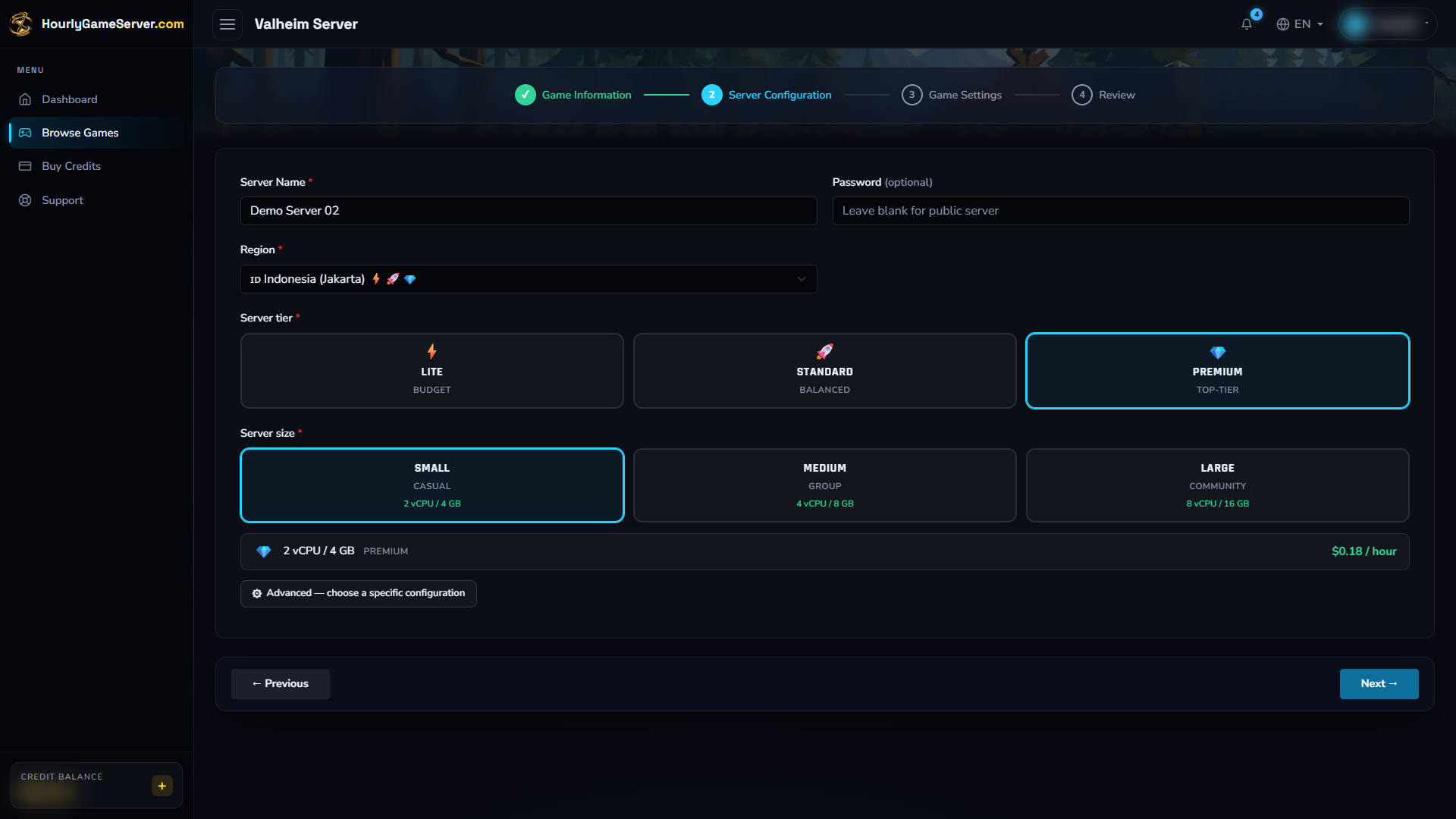
Jakarta, Premium, and Small are example choices. The password is blank in this image; despite the generic optional label, enter at least five characters for your Valheim server.
- Select Next to open Game Settings. Choose browser visibility and crossplay under Server Identity. Set World Seed now if you want a particular seed for a new world.
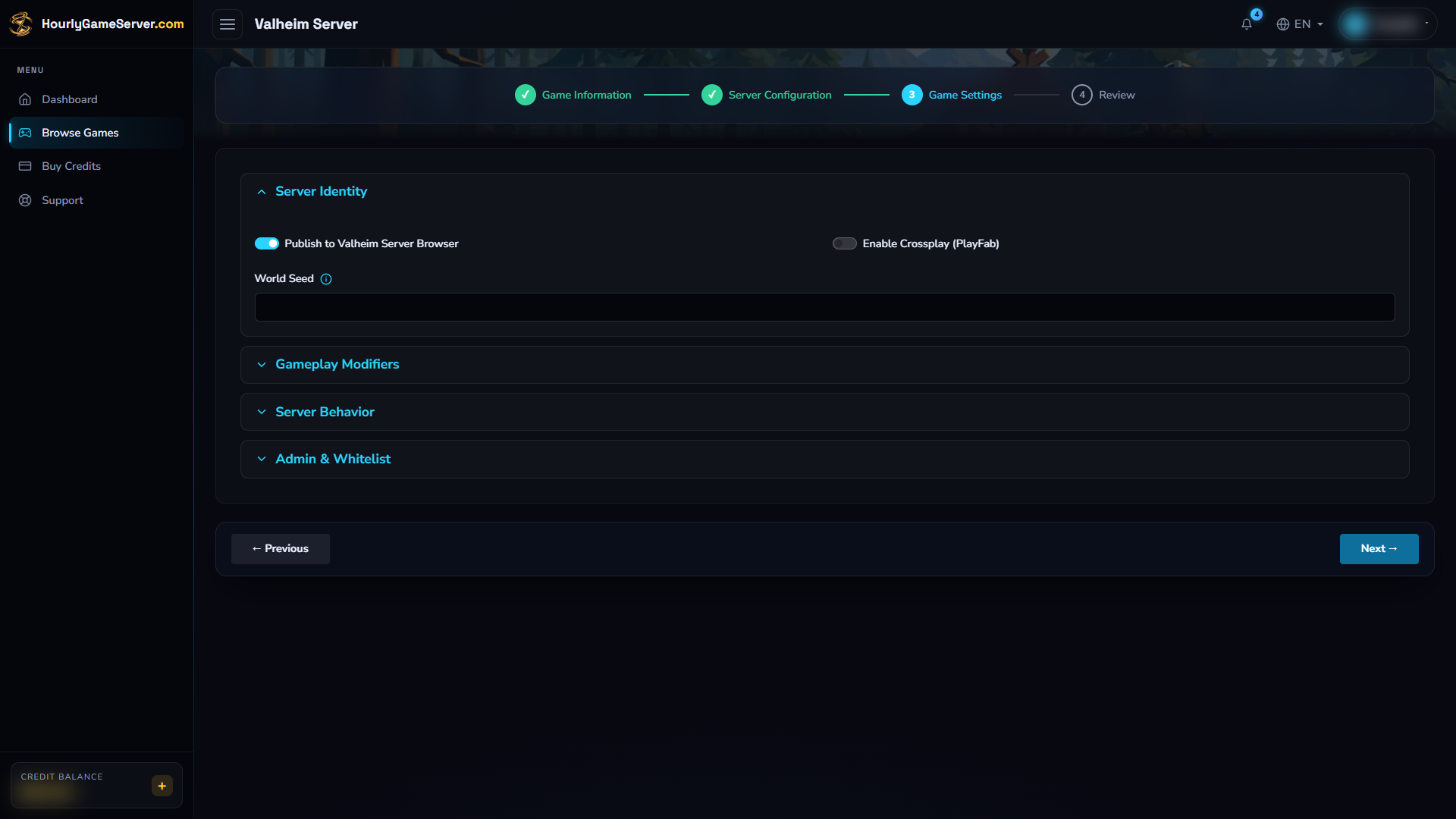
Server Identity shows the initial choices. Enable crossplay before inviting supported non-Steam players; expand the other sections by selecting their headings.
- Expand Gameplay Modifiers, Server Behavior, or Admin & Whitelist if you need their controls. Start with the defaults if you are unsure.
- Select Next to review your choices. Use Previous to correct them before selecting Create Server. The first hour is charged upfront.
- Open the server on Dashboard and wait for Running. First startup and discovery in the game's server browser can take additional time.
If insufficient credits leave the server stopped, top up before trying to start it again. See Running Out of Credits.
Understand the game settings
| Setting | Default and available choices | What to consider |
|---|---|---|
| Publish to Valheim Server Browser | On | Makes the server discoverable by name. Turning it off hides the listing; it does not replace a password. |
| Enable Crossplay (PlayFab) | Off | Enable before inviting supported non-Steam players. Steam players can also join a crossplay server. |
| World Seed | Blank | Affects initial world generation only. Changing it does not regenerate an existing saved world. |
| Combat Difficulty | Normal; VeryEasy, Easy, Normal, Hard, VeryHard | Tune combat for your group's experience. |
| Death Penalty | Normal; Casual, Normal, Hard, Hardcore | Agree on the consequences of death before choosing a harsher option. |
| Resource Rate | Normal; Muchless, Less, Normal, More, Muchmore | Adjust gathering yields rather than hardware capacity. |
| Raid Frequency | Normal; None, MuchLess, Less, Normal, More, MuchMore | Choose how often raids occur; None disables them. |
| Portal Behavior | Normal; Casual, Normal, Hard, VeryHard | Changes portal restrictions. Keep Normal unless your group wants different travel rules. |
| Auto-update Check Interval (seconds) | 900; 0–86400 | 900 seconds is 15 minutes. This is not a world-save interval. |
| Restart on Empty Server | Off | Controls idle-server restart behavior, not the app's scheduled start/stop feature. |
The three access-list fields are covered below. Server Name and the join Password belong to the general server configuration, not these game-specific settings.
Change settings after creation
- Let players know you are about to stop the server.
- On the instance, select Stop and wait for Stopped.
- Open Game Settings, expand the relevant section, make your changes, and select Save Settings.
- Select Start, wait for Running, and check the result in Valheim.
Settings are locked while the server is running or changing state. Saving settings does not start it automatically. Use Server Settings for general configuration such as the join password or hardware. Stopping preserves your world; deleting a server is not a settings step. See Game Settings and Server Settings.
Join your world
- Wait for the server to finish starting. Copy its current IP Address and note its Password from the Console.
- In Valheim, select your character and open Join Game.
- Use Join IP or the address option under Add server, depending on your client
version. Enter
SERVER_IP:2456, replacingSERVER_IPwith the displayed address. - Join and enter your password. If you published the server, you can instead find it by its server name in the community list.
For crossplay, use the public server address, not a local or loopback address. Iron Gate also supports join codes: a player already in the world can find the code in the pause menu and share it; another player uses Join Game > Add server. The web Console does not provide a join-code field. A code is not a substitute for the server password.
These methods follow Iron Gate's server guide and Crossplay FAQ.
Administration and supported features
Valheim has no Mods or Player Management section in the web Console. The supported access-list controls are in Game Settings > Admin & Whitelist:
- Admin SteamIDs: numeric SteamID64 values for trusted administrators.
- Whitelist SteamIDs: restricts entry to listed players. Include every intended player, including yourself, before enabling this restriction.
- Banned SteamIDs: numeric SteamID64 values for players you want to block.
Separate multiple numeric IDs with commas or spaces; do not enter profile URLs or display names. These controls are limited to numeric Steam IDs. Iron Gate's current manual describes platform-specific IDs for crossplay, so do not assume these fields can grant Xbox/Microsoft Store administration or safely manage a mixed-platform whitelist. For a crossplay group, keep the whitelist empty unless you have confirmed access for everyone.
Apply access changes using the stop/save/start sequence and verify the intended player's access afterward. If a list change does not take effect, contact support rather than repeatedly changing IDs. In-game administrators can use Valheim's supported kick, ban, and unban commands; website ownership alone does not make your character an administrator.
There is no managed mod installer for this game. Web sharing permissions are also separate from in-game rights; see Roles, Permissions, and Members.
Troubleshooting
| Problem | What to check |
|---|---|
| Server is missing from the browser | Confirm Running, allow startup time, check Publish to Valheim Server Browser, and verify that you set a password of at least five characters. Try the current IP and port instead. |
| A friend cannot join | Compare game versions, password, and crossplay settings on both sides. Check whitelist and ban entries. Steam-only mode excludes non-Steam clients. |
| A seed change appears to do nothing | Seeds apply when a new world is generated, not to an existing save. Do not delete your server to troubleshoot a seed. |
| Settings cannot be saved | Wait for Stopped and check your permission to edit game settings. |
| Administration or a whitelist is not working | Check the numeric SteamID64 and restart after saving. Cross-platform IDs are not supported by these fields; contact support if access remains incorrect. |
| Play becomes slow around large bases | Check CPU/Memory during the problem and consider a larger size or a better-suited tier. Changing Resource Rate does not add computing capacity. |
When contacting support, include the server name, time of the problem, and the visible error, but never your password.