Troubleshooting
Start with the symptom you can see. Check the current state before retrying an action, spending more credits, or changing a working configuration.
Choose your symptom
- My Server Won't Start: Start is unavailable, the server stays Starting, or startup ends in Error.
- I Can't Connect to My Server: the game cannot find the server or rejects a connection.
- My Server Stopped on Its Own: an unexpected stop or disconnection.
- Settings or Mods Didn't Apply: saved choices are missing or do not take effect.
- An Automation Didn't Run: a scheduled start, shutdown, or broadcast did not have the expected result.
- My Save Data Is Missing or Outdated: progress or a world appears wrong after joining. Follow this guide before making more changes.
- My Payment Didn't Add Credits: checkout finished, closed, or failed but the expected top-up is missing.
Check without changing anything
- Confirm you are signed in to the expected account and have opened the correct server in Console.
- Note the exact status, message, and time, including your timezone. Refresh the page once if it appears out of date.
- Let an in-progress Starting or Stopping operation finish. Do not repeatedly press lifecycle buttons or submit another settings change.
- Review Activity Log around the problem time. An entry records an action or event; it does not by itself prove that players can join or that the expected world loaded.
- For credit questions, compare the owner's Credit Balance with the server's hourly rate. Use Cost & Usage for hosting charges and the original payment result and receipt for a top-up.
Do not use Delete Server as a repair step. It permanently removes the server and its save data. For a suspected save problem, stop further play and follow the save-data guide above.
Open a support case
For an affected server, open 24/7 Customer Support on its instance page. You need permission to manage support; if the section is unavailable or read-only, ask the owner to submit the case.
- Enter a short Title, then choose the closest Category and Subcategory.
- Set When did it happen? to the problem time. Use the “happening right now” option only if that is accurate.
- In What is happening?, describe the expected result, actual result, and checks already tried.
- Review any attachments for private information, then select Submit.
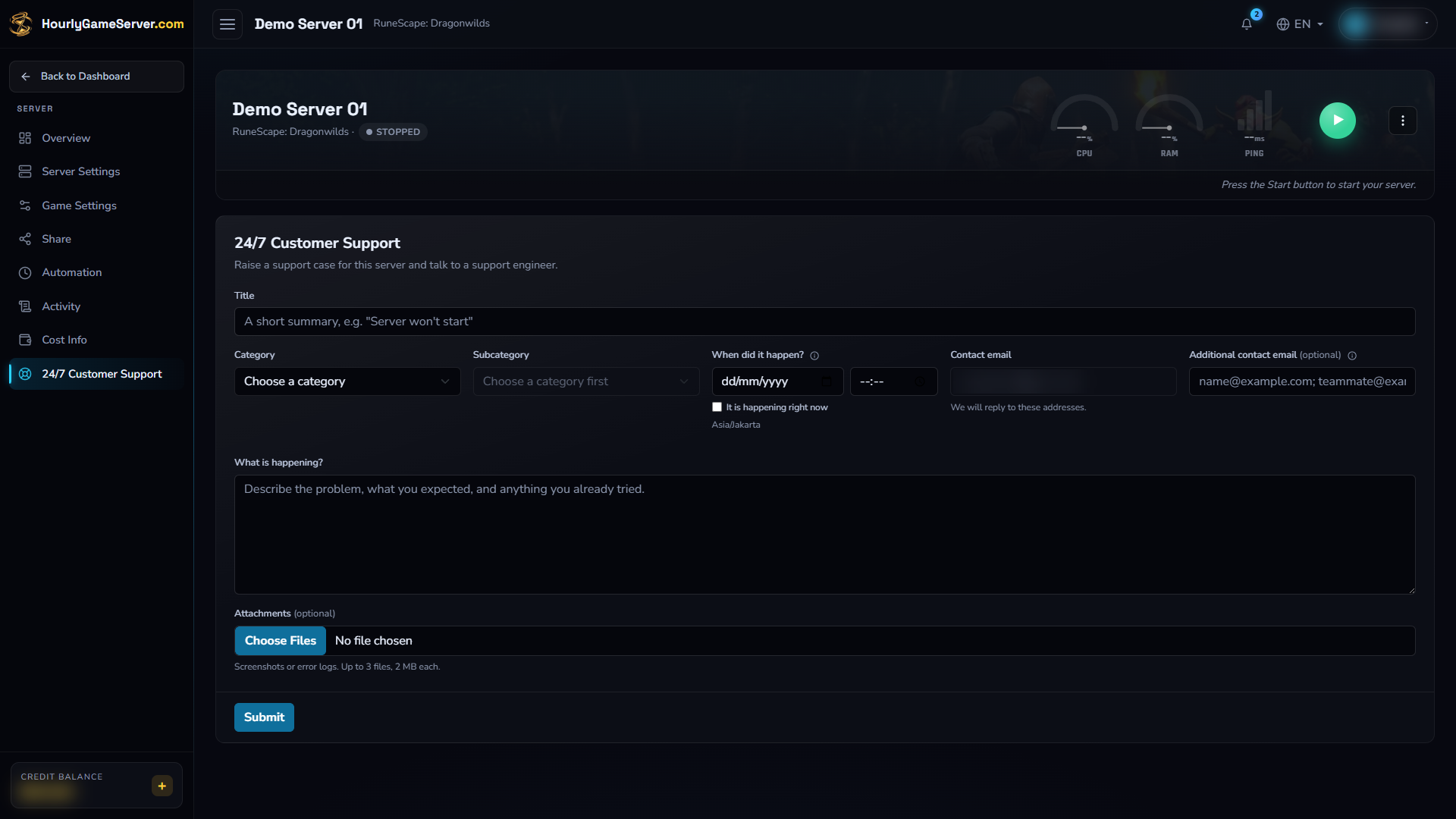
The support form before submission. Contact details and account information are blurred; this empty form is not confirmation that a case has been opened.
The case thread and Case ID confirm submission. Keep that ID for follow-up. Only one case can be open per server: use the existing thread instead of opening duplicates. While waiting for a reply, you can edit your latest unanswered message; a new reply becomes available after support responds. After a case is closed, complete its rating before opening another.
If you cannot sign in, have no server yet, or cannot reach the support section, email support@hourlygameserver.com. Do not create or pay for a server just to report an account or payment problem.
Share useful evidence safely
Include the game and server name, approximate time and timezone, exact error text, and relevant Activity Log entries. For payment problems, include the order reference, provider, amount, and currency privately.
Attach only relevant excerpts or screenshots. The case form accepts up to three files of 2 MB each. Remove passwords, game-account tokens, sign-in codes, share-link keys, full card or bank details, and unrelated personal information. Do not send a complete browser session or an unreviewed log archive. Support needs the symptom and timing, not your credentials.