Game Settings
Use Game Settings to edit the options exposed for your game, such as difficulty, access settings, player limits, or world rules. Available fields and their effects differ by game.
Before editing
You need the Game Settings role permission. Let players finish, select Stop, and wait for Stopped before editing. A normal stop preserves saves and pauses billing; check any save warning in Activity Log before continuing.
Read the game guide before changing world-generation, difficulty, or content settings. A saved value may affect only new worlds; it does not necessarily rename or convert an existing world.
Save and apply changes
- Open the server from Console and select Game Settings.
- Expand the relevant section heading to show its fields.
- Change the supported values. Check any dependencies or validation messages.
- Select Save Settings and wait for the save result.
- Select Start when you are ready. Saved settings apply at the next startup, not merely when you finish typing.
Starting uses the owner's banked time or credits. A member saving settings does not take over payment for the server.
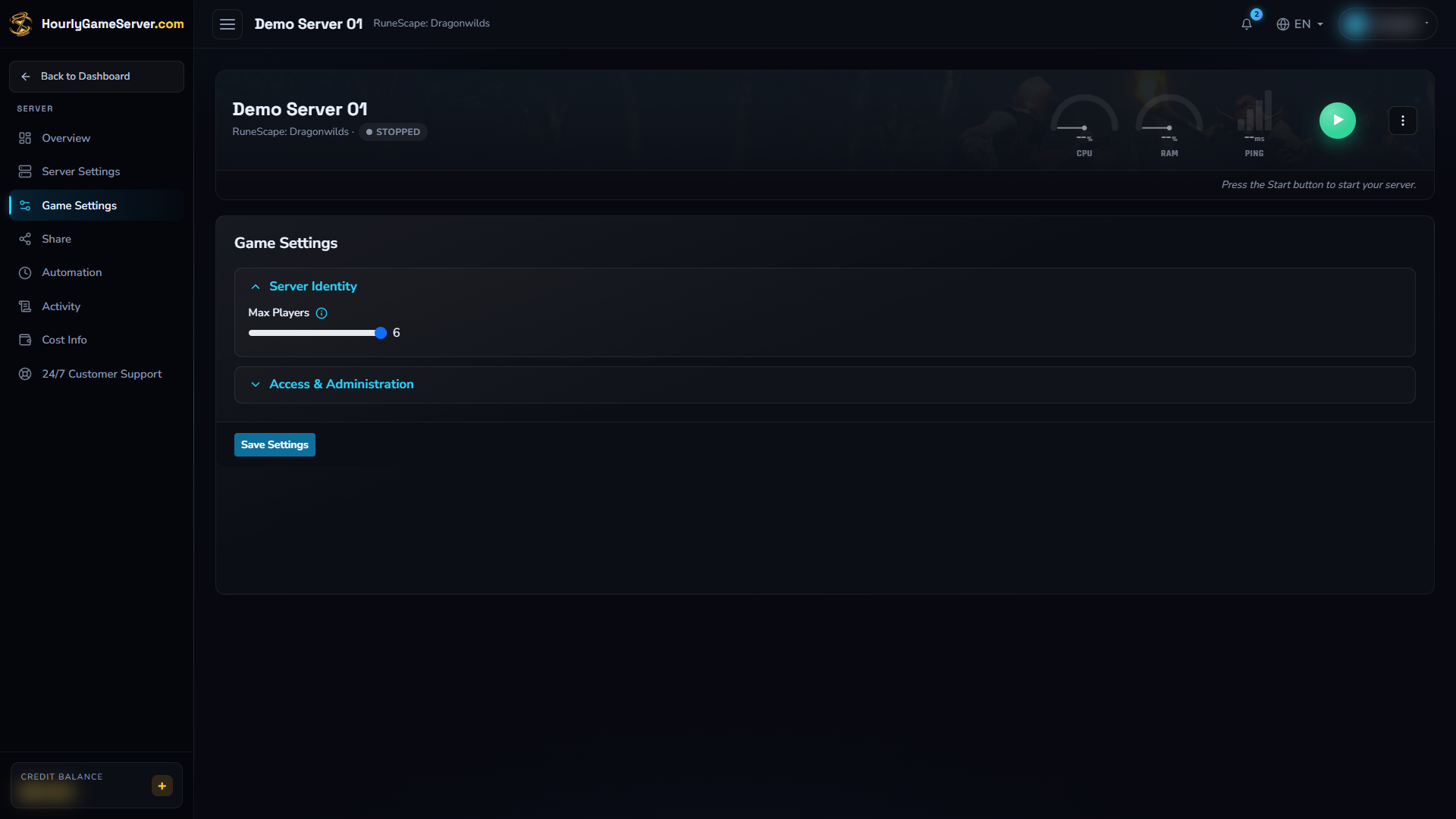
Game Settings on an existing stopped Dragonwilds server. Max Players is 6 in this example; Access & Administration is collapsed. No values were changed and Save Settings was not selected. Other games have different fields and limits.
Verify the game
Wait for Running, connect, and check the option you changed. Review the settings again and the corresponding Activity Log entry if the result differs from what you expected.
Game Settings is read-only without permission and locked while Running or in a lifecycle transition. A collapsed section is not a disabled setting; expand it before deciding an option is missing.
If startup fails or a world behaves unexpectedly, avoid deletion or repeated changes. Follow Settings or Mods Aren't Applying. When contacting support, describe the field, previous value, new value, and observed result; do not send passwords or tokens.