Counter-Strike 2
Host a Counter-Strike 2 match, choose its maps and rules, and invite players using the server's connection address.
Before you begin
- Install and update Counter-Strike 2 on Steam on each player's PC. This is a CS2 server, not a Counter-Strike: Global Offensive legacy server.
- Sign in to hourlygameserver.com and have enough credits for the displayed first-hour price.
- Prepare a Steam GSLT Token for an Internet server. On Steam Game Server Account Management, create a game server account for App ID 730, not a different Counter-Strike game. Use a separate token for each server.
Steam requires an account that is not limited, community-banned, or locked, has a qualifying registered phone, and owns the relevant game. Check the requirements on the Steam page if token creation is unavailable. Keep your token private: players need the connection address and any join password, not your token. Steam password resets can regenerate tokens, and unused tokens can expire. Replace an invalid token before trying to start again.
Choose a region and size
Choose a region close to most players to reduce latency. Compare the resources and hourly price shown for the available Server tier and Server size combinations; availability varies by region.
Small is a starting point for a private match, not a guarantee of a particular player count. Consider Medium or Large for busier matches, more bots, or demanding Workshop maps. CS2 is CPU-sensitive. Watch CPU and Memory on the instance page during a representative match before deciding whether to resize.
Create the server
- Open Games, choose Counter-Strike 2, and open its creation form.
- Enter a recognizable server name. Set an optional join password for a private match, and share it only with invited players.
- Choose the region, Server tier, and Server size. Check the hourly price.
- In the game configuration step, enter your Steam GSLT Token, then choose the mode, map, and match rules below. Expand the individual setting sections to see all controls.
- Review the name, region, capacity, settings, and price, then create the server once. Creation charges one hour upfront when your balance can cover it.
- Open the server in Console. Wait for Running and connection details on Overview. If it remains Stopped because the first hour could not be paid, add credits and select Start rather than creating a duplicate.
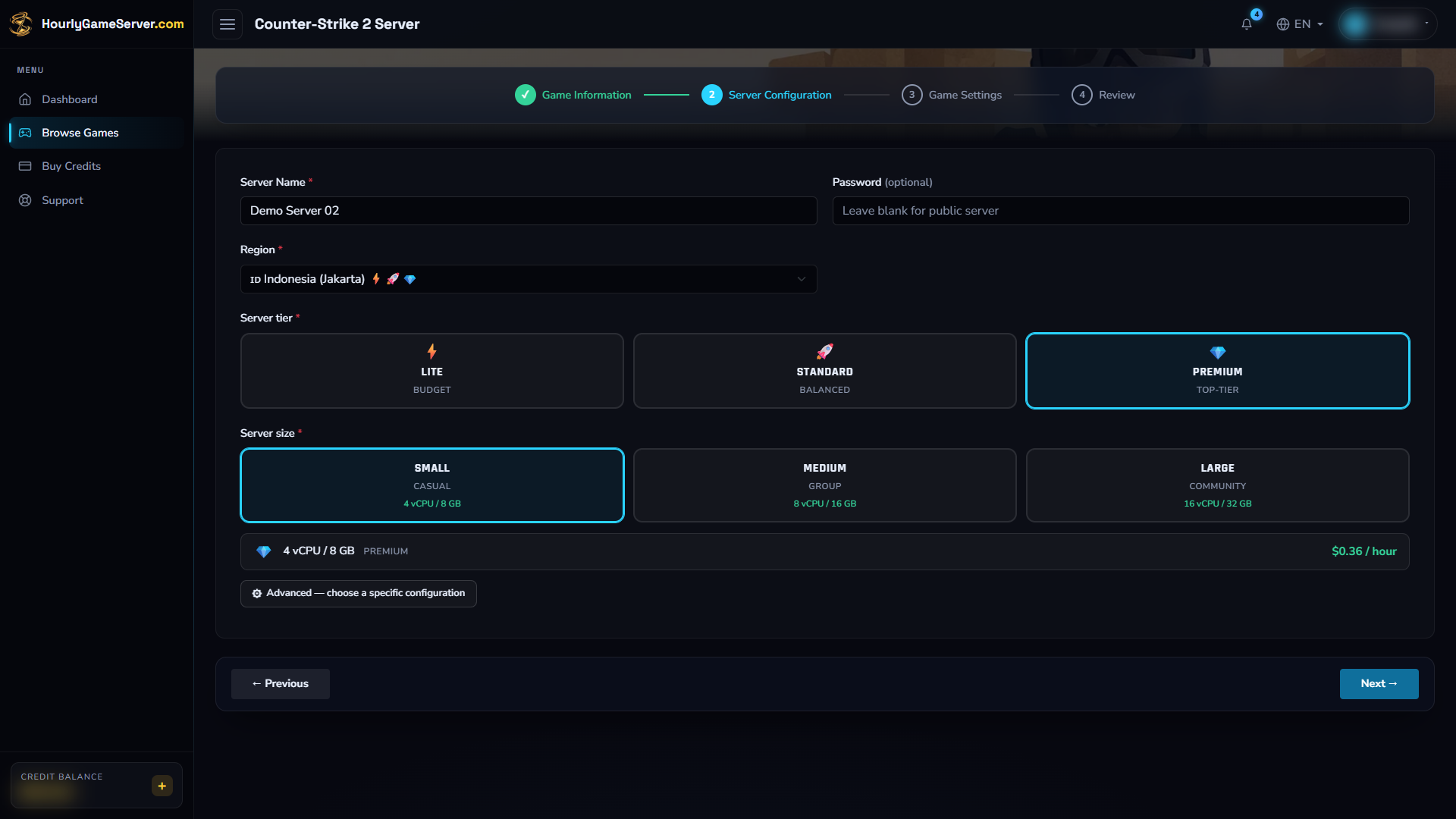
Check the name, hosting choices, and hourly price before continuing. The selections illustrate the form; they are not a recommended region or capacity for every group.
Configure maps and match rules
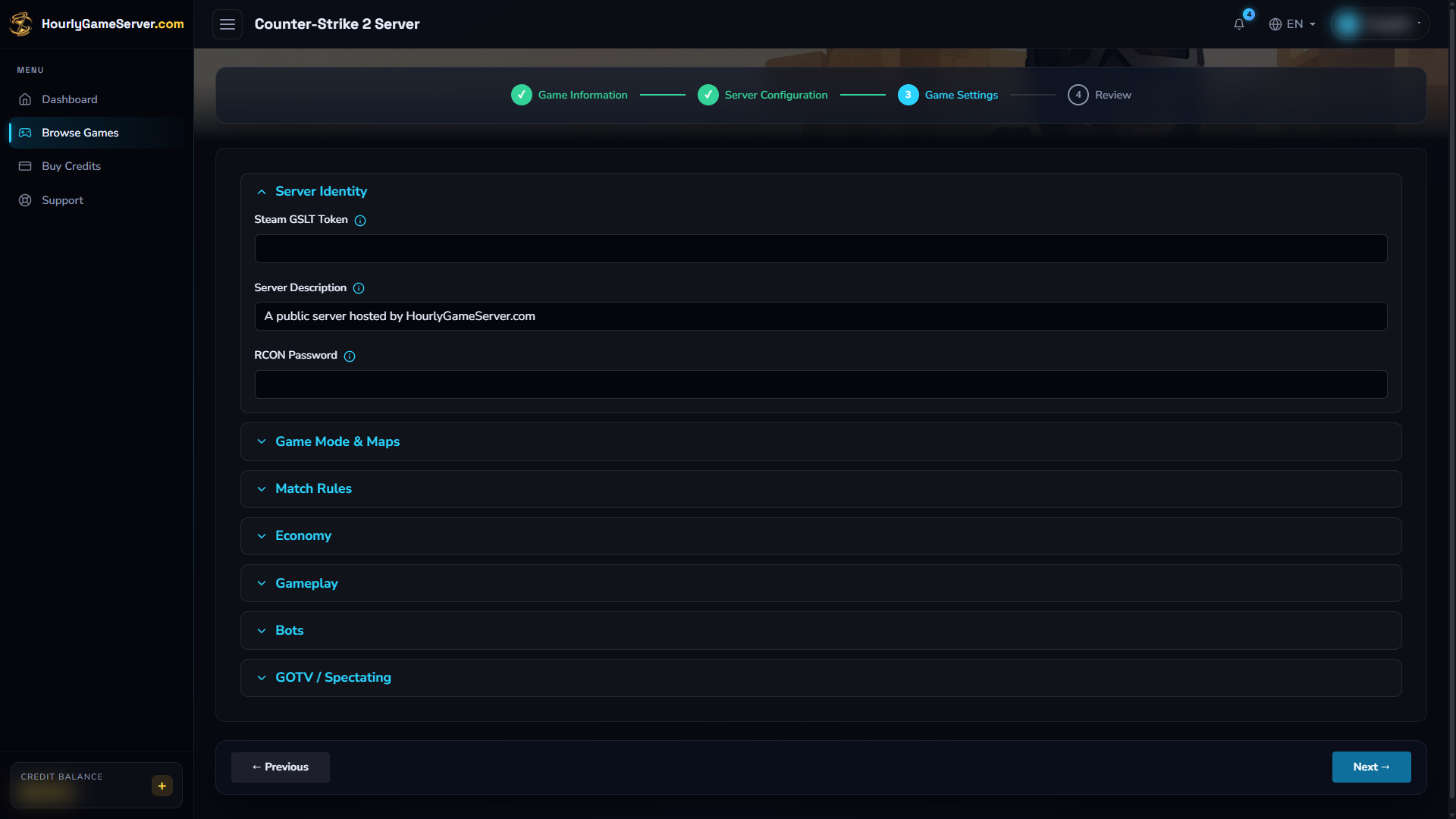
Expand the other groups to review their controls. The example token field is empty: supply your Steam GSLT Token for App ID 730 before creating an Internet server.
These are the form's defaults and available ranges, not performance recommendations.
| Setting | Default and choices | What to consider |
|---|---|---|
| Server Description | A hosting description | Replace it with a short explanation of your match or community. |
| Game Mode | Competitive; also Casual, Deathmatch, Wingman | Pick the mode first, then a compatible map and rules. |
| Map Group | Active Duty; also Reserve, Workshop | Workshop reveals the map and collection ID fields. |
| Start Map | de_inferno |
Select a map installed in the current CS2 release. A listed choice does not guarantee current game support. |
| Max Rounds | 24; 1–60 | Total round limit for round-based modes. |
| Round Time (minutes) | 1.92; 0.5–5 | Time allowed for a defusal round. |
| Freeze Time (seconds) | 15; 0–30 | Preparation time at round start. |
| Buy Time (seconds) | 20; 0–60 | How long players can purchase equipment. |
| Enable Halftime | On | Enables the halftime team switch where the mode supports it. |
| Start Money / Max Money | 800 / 16000; ranges 0–16000 / 1000–65535 | Initial money and wallet cap for economy-based modes. |
| Friendly Fire / Solid Teammates | Both on | Control teammate damage and teammate collision. |
| Allow All Talk | Off | Allows voice communication across teams. |
| Enable Cheats | Off | Keep off for ordinary matches; this is for agreed practice sessions. |
| Kill On Disconnect | On | Controls disconnect-related kill handling. |
| Bot Difficulty | Normal; Easy, Normal, Hard, Expert | Higher difficulty changes bot skill, not server capacity. |
| Bot Quota / Bot Fill Mode | 0; 0–10 / fill or competitive | Set the bot target and quota behavior. Zero starts without a requested bot quota. |
| Enable GOTV / GOTV Delay (seconds) | Off / 0; 0–120 | Optional spectator relay and delay; not a recording-download feature. |
Game modes can impose their own rules. If a round or economy setting appears ineffective, first check that it applies to the selected mode.
For a Workshop map, select Workshop and enter its numeric Workshop Map ID, taken from the item's Steam Workshop URL. Use Workshop Collection ID for a compatible collection. Do not paste the entire URL into an ID field. Use content made for CS2, not legacy CS:GO maps. The available fields do not provide a general plugin installer or a map-rotation command panel.
Leave RCON Password blank. It is not the player join password and does not provide a supported external RCON connection here. Use Player Management for the available administration tasks.
Apply changes safely
- Tell players the match will stop. Select Stop and wait for Stopped.
- Open Game Settings, expand the relevant sections, and make your changes.
- Select Save Settings and wait for confirmation.
- Select Start. Wait for Running, then reconnect and check the map and rules.
Saving alone does not apply a new live match configuration. A stop/start disconnects everyone; do not expect an interrupted match to resume at the same round. Use Server Settings for region, tier, or size changes, rather than looking for them among game rules.
Connect and invite players
Copy the current Domain Name or IP Address from Overview. In CS2, enable the developer console in Settings → Game → Enable Developer Console, then open it with its assigned key, normally ~.
Enter this command, replacing ADDRESS with the copied domain or IP:
connect ADDRESS:27015
The player connection uses UDP 27015. Do not use a website URL or the spectator port as the
player address. If a join password is required, enter it when prompted. You can also set it in
the game console before connecting with password "YOUR_JOIN_PASSWORD"; replace the
placeholder privately and do not share screenshots containing it.
The community server browser is another way to find an advertised server, but listing can lag behind startup. Try direct connection first if search does not find it. When enabled, the GOTV spectator relay uses UDP 27020, separate from normal play.
Player management and mods
While the server is running, authorized users can open Player Management to view players, Kick, Ban, Unban, and send a broadcast. A kick removes the current connection; a ban blocks that player's return until removed. Check the player identifier before acting.
There is no Make Admin action for CS2. Access to the website's server controls does not automatically grant in-game privileges. There is also no Mods section for installing server plugins; the Workshop map fields above are the supported content-selection controls.
Troubleshooting
- Startup or public discovery fails: verify the GSLT belongs to App ID 730, is current, and is not in use by another server. Do not post the token in a support ticket.
- Cannot connect: wait for Running, recopy the current address, use port 27015, and update CS2 in Steam. Check the join password and whether the player is banned.
- A map will not load: try
de_infernowith Competitive and Active Duty. For Workshop, check the numeric ID, item availability, and CS2 compatibility. - Match rules look wrong: verify the selected mode, save while stopped, and start again. Do not assume every economy or round option affects Deathmatch.
- Lag or delayed player actions: check CPU and Memory, reduce bots, and consider a larger size. Allow startup to finish before testing Player Management.
If the problem persists, contact support with the server name, approximate time, and error message, with tokens and passwords removed.