RuneScape: Dragonwilds
Before you begin
This guide takes you from creating a RuneScape: Dragonwilds server to joining its world and managing access. You need a signed-in HourlyGameServer.com account, enough credits for the first hour, and an up-to-date copy of the game.
In the game, open Settings and copy your Player ID from the bottom of the menu. You will use it as Owner Player ID to assign the in-game owner. This is not your Steam display name or your HourlyGameServer.com account name.
Decide on a server name, a join password if you want a private world, and a separate admin password. Share the join password with players; give the admin password only to trusted administrators. The screenshots omit passwords and obscure personal details.
Choose a region and size
Choose a Region near most of your players. The available Server tier, Server size, and hourly price depend on the region. Jakarta and Premium in this example are choices for the demonstration, not requirements for your server.
Dragonwilds supports 1 to 6 players through this app. Look for at least 4 vCPU / 8 GB RAM; the example uses Small with those specifications. An estimate of about 2 GB for the world plus 1 GB per player makes 8 GB a sensible starting point for six players, not a performance guarantee. World complexity and activity can increase demand. If Small is unavailable in your region, choose an available size that meets the requirements.
For the differences between tier and size, see Choosing a Server Tier and Server Size. Use the current price displayed in your wizard rather than the historical price in a screenshot.
Create your server
- Open Browse Games, select RuneScape: Dragonwilds, and continue from Game Information.
- On Server Configuration, enter Server Name and, for a private world, Password. Select the region, tier, and size, then check the specifications and hourly cost.
- Select Next to open Game Settings.
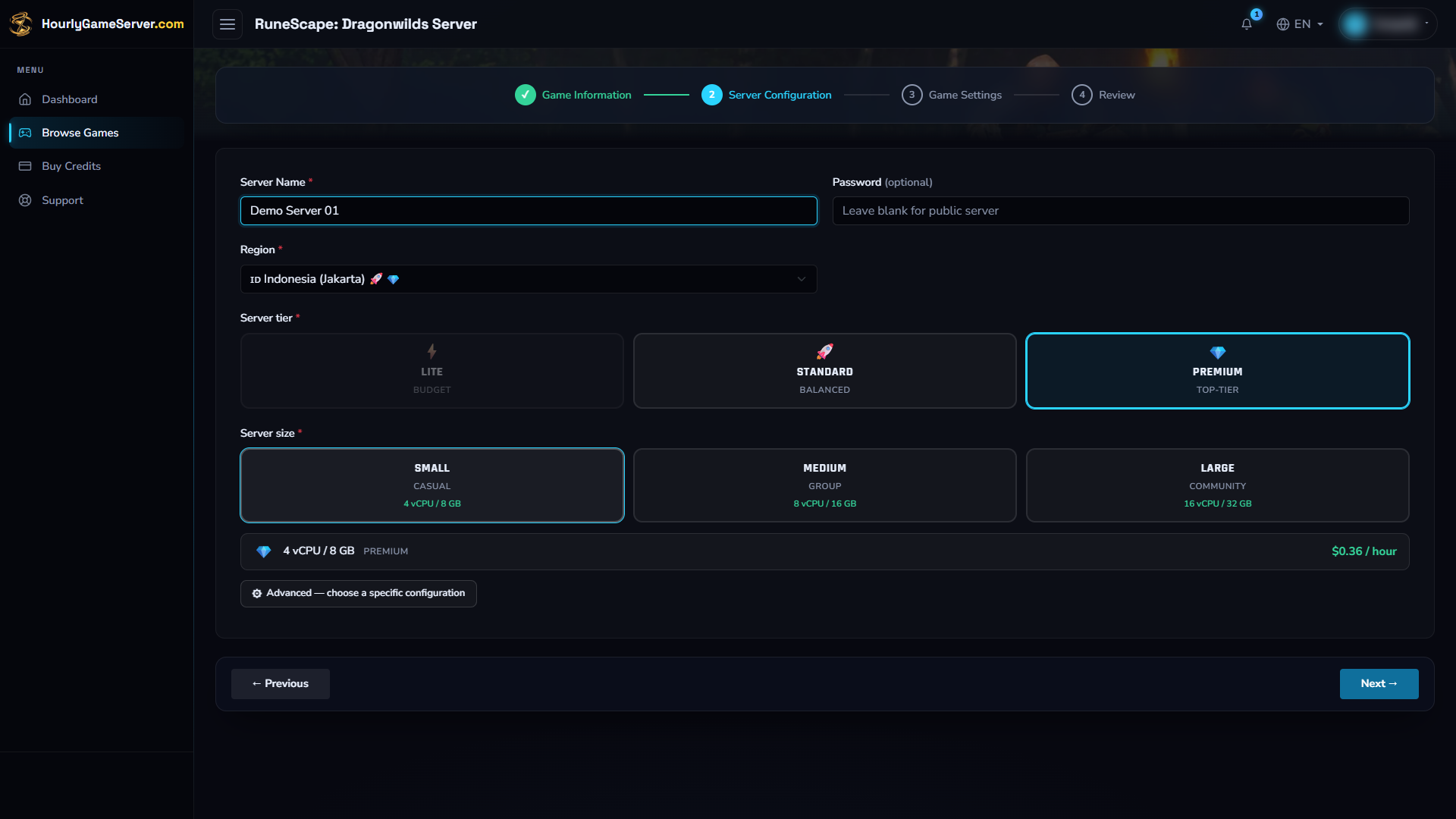
Server Configuration shows the selected hardware and hourly price before you continue.
- Set Max Players. Expand Access & Administration, paste your Owner Player ID, and enter a strong Admin Password. The next section explains these fields.
- Select Next and review the server configuration and game settings.
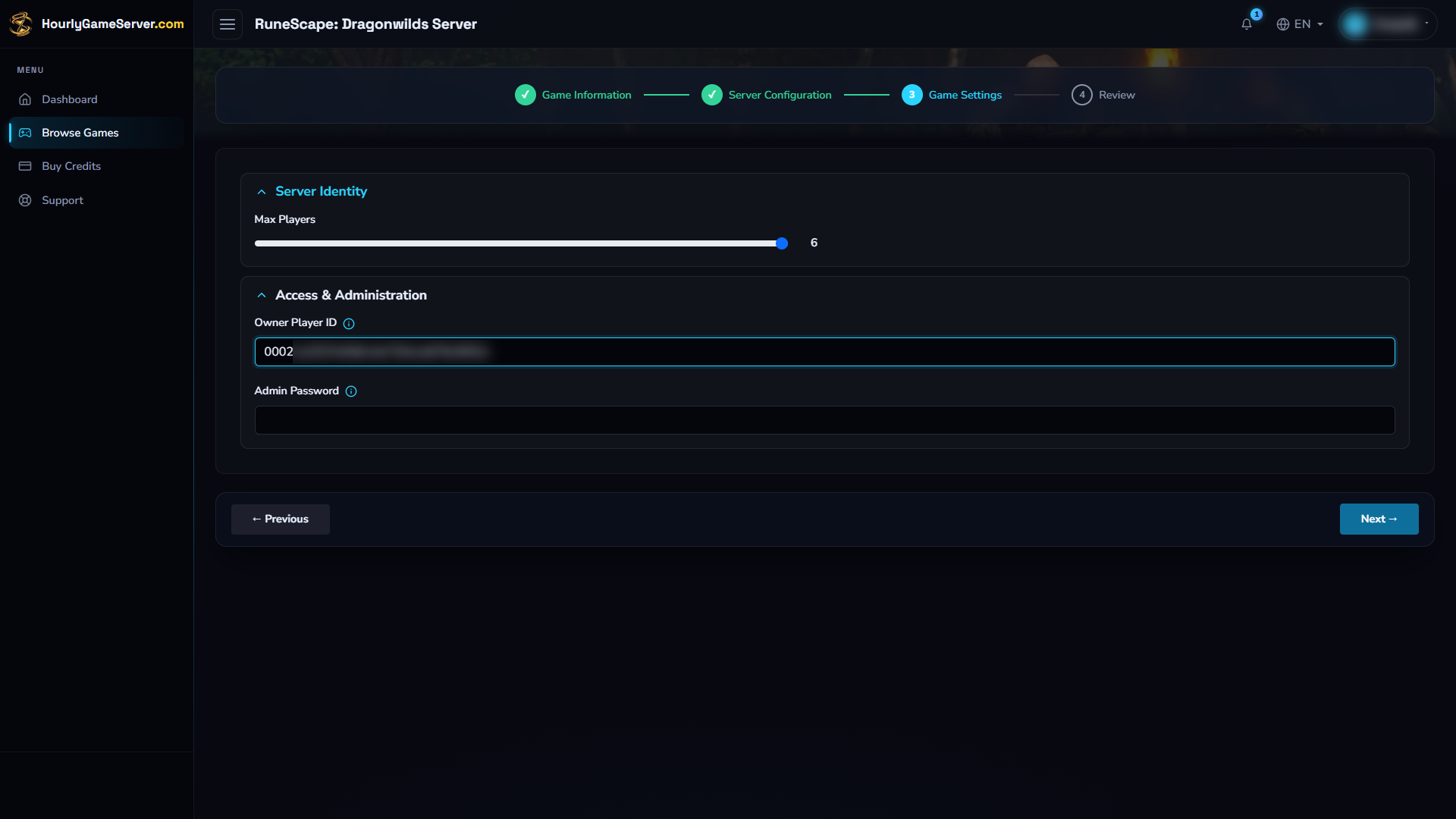
Use your own full Player ID. Only its first four characters are visible in this example.
- On Review, correct any mistakes with Previous. Confirm the current hourly cost before selecting Create Server. The first hour is charged upfront.
- Open the new server card on Dashboard. Wait for Running; initial setup can take several minutes, and the game may need additional time to appear in its world browser.
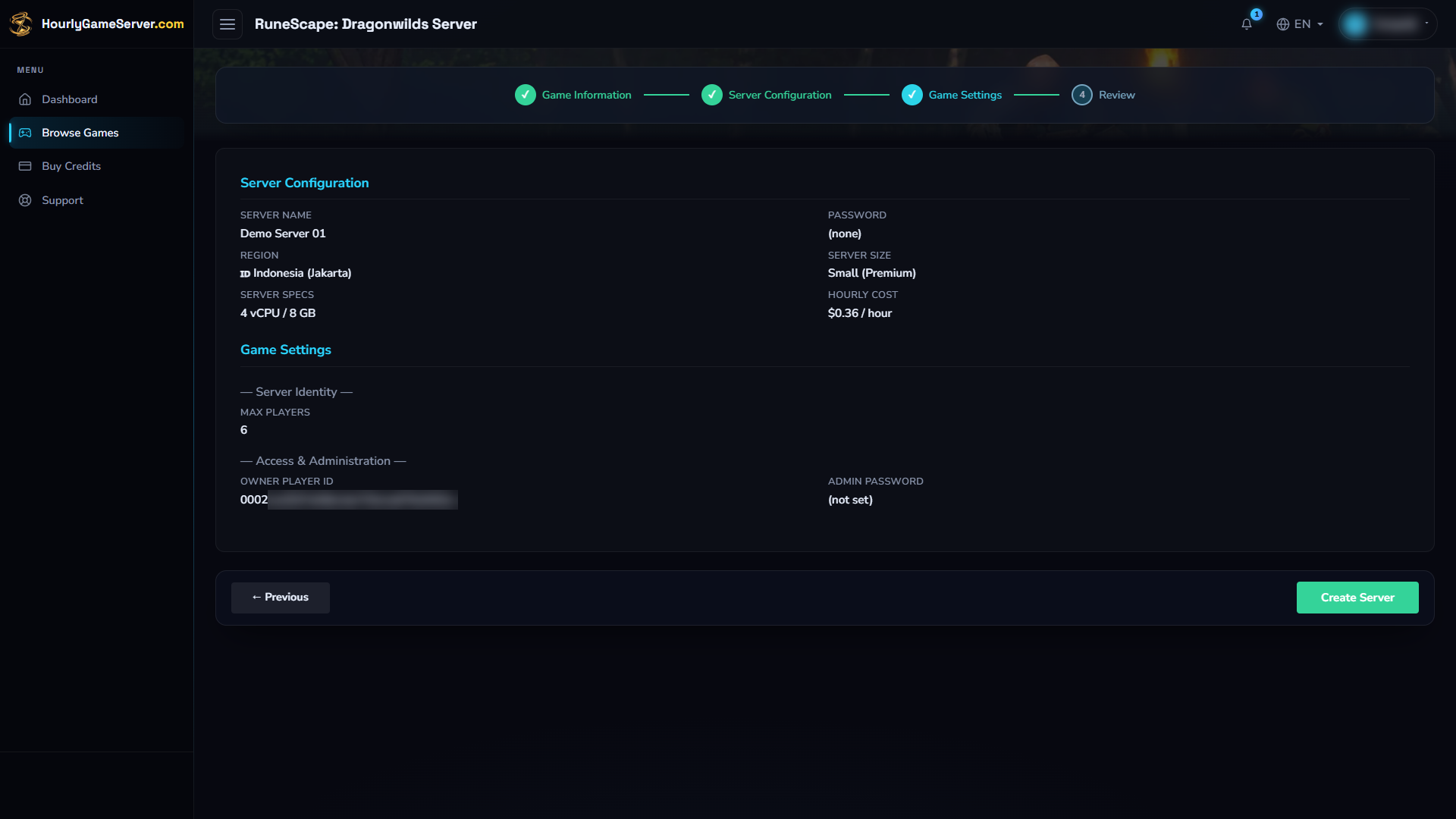
Review combines the server and game settings. Passwords are not set in this illustration; add your own before creating a private server.
If there are not enough credits, the server entry can remain Stopped without starting. Check Running Out of Credits before retrying.
Understand the game settings
| Setting | What it does | Suggested starting choice |
|---|---|---|
| Max Players | Limits the number of players to 1–6; the default is 6. | Choose the size of your group, up to 6. |
| Owner Player ID | Assigns in-game ownership to the player with that ID. | Paste your complete Player ID from the game's Settings menu. |
| Admin Password | Grants access to in-game server administration. It is separate from the password used to join the world. | Set a strong password different from the join password. |
Leaving Owner Player ID blank does not assign an in-game owner, even if the server starts. Website ownership does not automatically grant in-game owner privileges.
If Admin Password is blank, the configured join password is reused. If both are blank, an admin password is generated; do not rely on blank fields as a way to access administration. Set an explicit admin password that you know and keep it private.
Server Name and the join Password belong to the general server configuration. There is no separate world-name field in this game's settings. A new world's name is based on the server name. Renaming the server later does not rename a world already saved.
Change settings after creation
- Tell connected players that you are stopping the server.
- Open the instance and select Stop. Wait until the status is Stopped.
- Open Game Settings, change the required fields, and select Save Settings.
- Select Start, wait for Running, and check the result in the game.
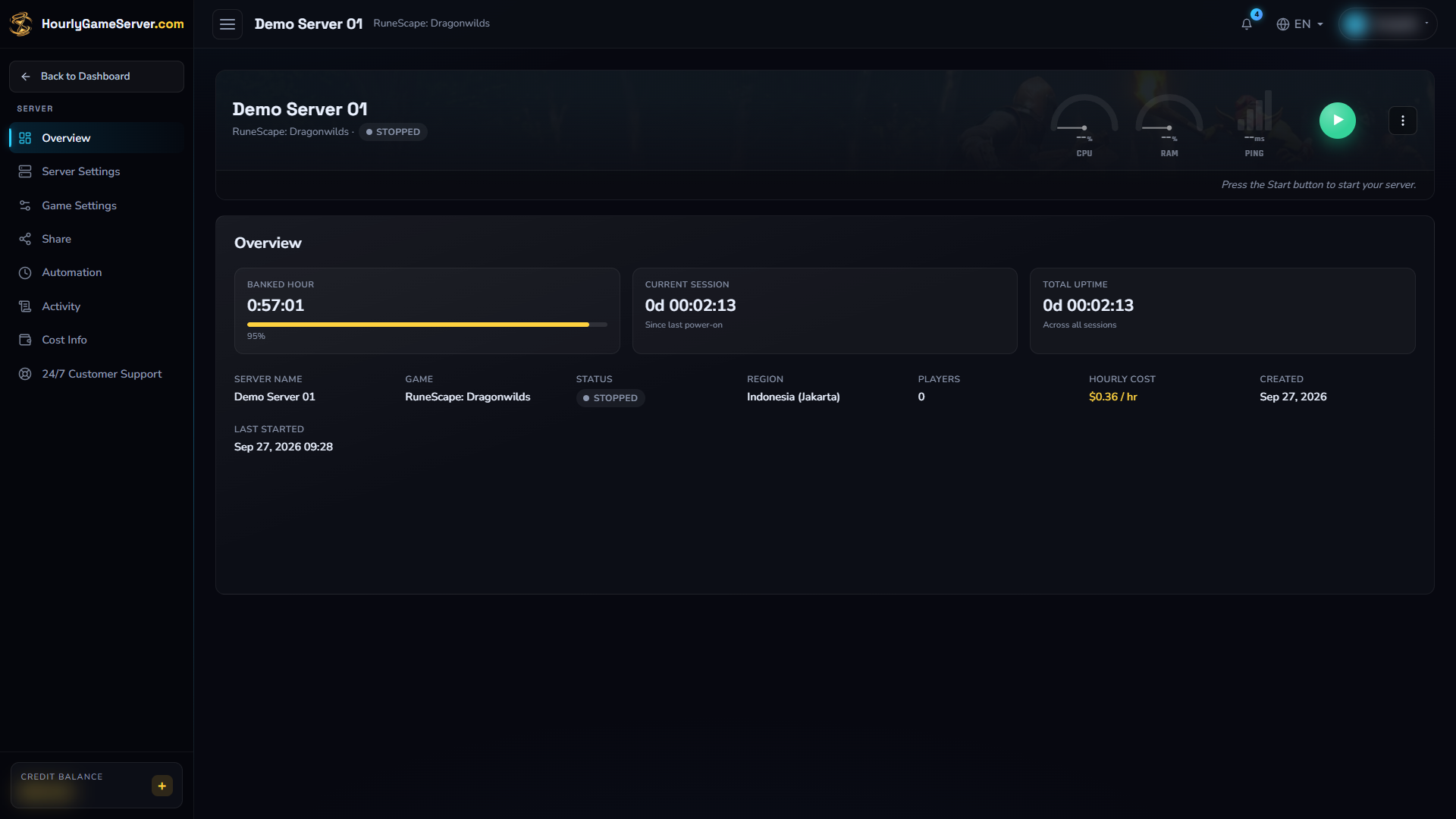
Check that the server is Stopped before editing settings.
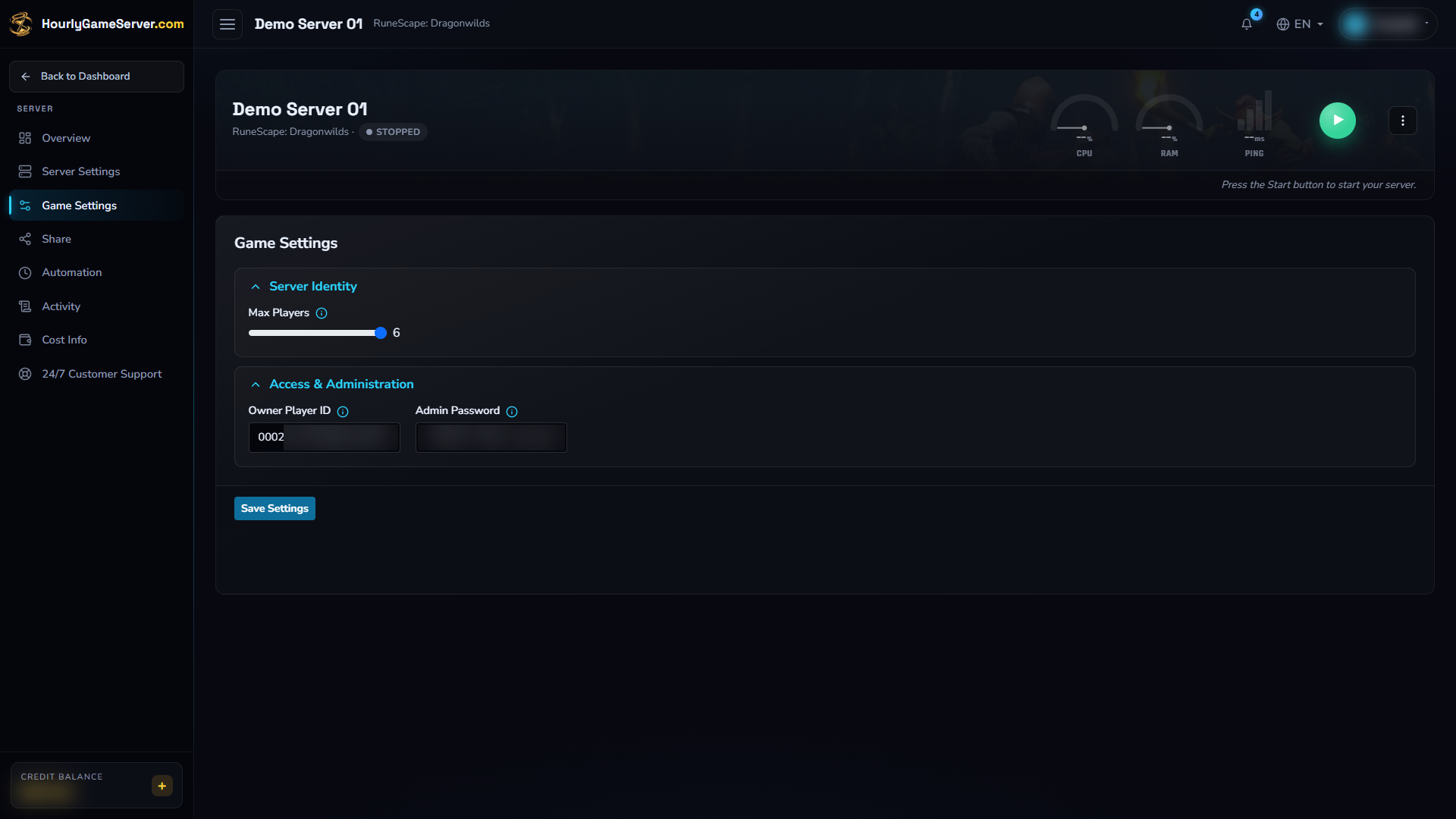
Stop the server before editing Game Settings. Saved changes take effect on the next start.
Game settings are locked while the server is running or changing state. You also need permission to edit them. Use Server Settings for the server name, join password, region, tier, or size, rather than looking for those controls in Game Settings. See Game Settings and Server Settings for the shared workflow.
Join your world
- Check that the instance is Running and give the game time to finish starting.
- In RuneScape: Dragonwilds, open Worlds, then the Public tab.
- Search for the exact name of the saved world, including uppercase and lowercase letters.
- Select your world and enter the join password, if configured.
For a newly created world, start with the name derived from your server name. If you renamed the server after playing, search for the original saved-world name instead. The name shown in the web Console and the name of an existing world can differ.
The app displays an IP address and domain, but this guide uses the game's Public world browser, not a direct-IP connection. Share the world name and join password with your group, not the admin password.
These in-game steps follow Jagex's dedicated-server guide.
Administration and supported features
After joining, open Pause Menu > Settings > Server Management in the game. The player whose ID matches Owner Player ID is the owner. Trusted players can enter the admin password to become administrators.
- Owner: can ban and unban players, whether they are online or offline.
- Admin: can ban regular players who are online, but cannot unban them.
- Regular player: joining the world does not grant administration rights.
Dragonwilds does not have a Mods or Player Management blade in the web Console. Use the game's own supported administration controls; do not look for another game's mod installer or player actions here. Sharing web access is separate from in-game administration: see Roles, Permissions, and Members.
Troubleshooting
| Problem | What to check |
|---|---|
| The world is missing from Public search | Wait for startup, search the exact saved-world name with matching case, and check that the client and server use compatible current versions. After a rename, try the original world name. |
| A player cannot join | Check the join password, available player slots, and client version. The admin password is not a substitute for the join password. |
| The server stays Stopped or will not start | Check credits and the instance's Activity information. Follow My Server Won't Start. |
| Owner or admin controls are missing | Check the complete Player ID and admin password, save changes while stopped, then start again. Website roles alone do not grant game privileges. |
| Saved settings seem unchanged | Confirm you selected Save Settings while stopped and started the server afterward. Renaming the server does not rename its existing world. |
| Game Settings cannot be edited | Wait for Stopped and check your permissions. |
| Performance is poor with the group online | Review CPU/RAM usage and the selected hardware. Consider a larger size; increasing Max Players alone does not add resources. |
If the issue persists, use 24/7 Customer Support from the instance. Describe the symptom, when it happened, and the steps you tried. Do not include passwords in public messages.