Palworld
Before you begin
Sign in to HourlyGameServer.com, have enough credits for the first hour, and update Palworld on each player's device. Choose a recognizable server name and a private join password if you do not want strangers entering your world.
Pocketpair documents dedicated-server crossplay for Steam, Xbox/Microsoft Store, PS5, and Mac. Your Crossplay Platforms selection must include each player's platform. Xbox and PS5 players join through the Community server list, not the direct-IP field. The app lists Palworld servers as community servers, but discovery can take time. Check platform/account multiplayer restrictions and matching game versions before inviting your group.
Choose a region and size
Choose a Region close to most players, then compare Server tier, Server size, hardware, and the current hourly price. Palworld's Small option can be useful for a new, lightly used world, but inspect its RAM rather than choosing by name alone.
Pocketpair's requirements list 16 GB memory, recommend more than 32 GB for greater headroom, and warn that 8 GB can start but is more vulnerable to out-of-memory crashes. They recommend at least four CPU cores. Choose an available size with enough memory for your group and budget; an 8 GB option is not a guarantee of stable long sessions.
More active Pals, bases, automation, and players increase demand. Monitor CPU and Memory in the Console while playing and consider Medium or Large as the world develops. Increasing guild limits or spawn rates does not add hardware. See Choosing a Server Tier and Server Size.
Create your server
- Open Browse Games, choose Palworld, and continue from Game Information.
- On Server Configuration, enter Server Name and Password, choose the region, tier, and size, and check the specifications and hourly cost.
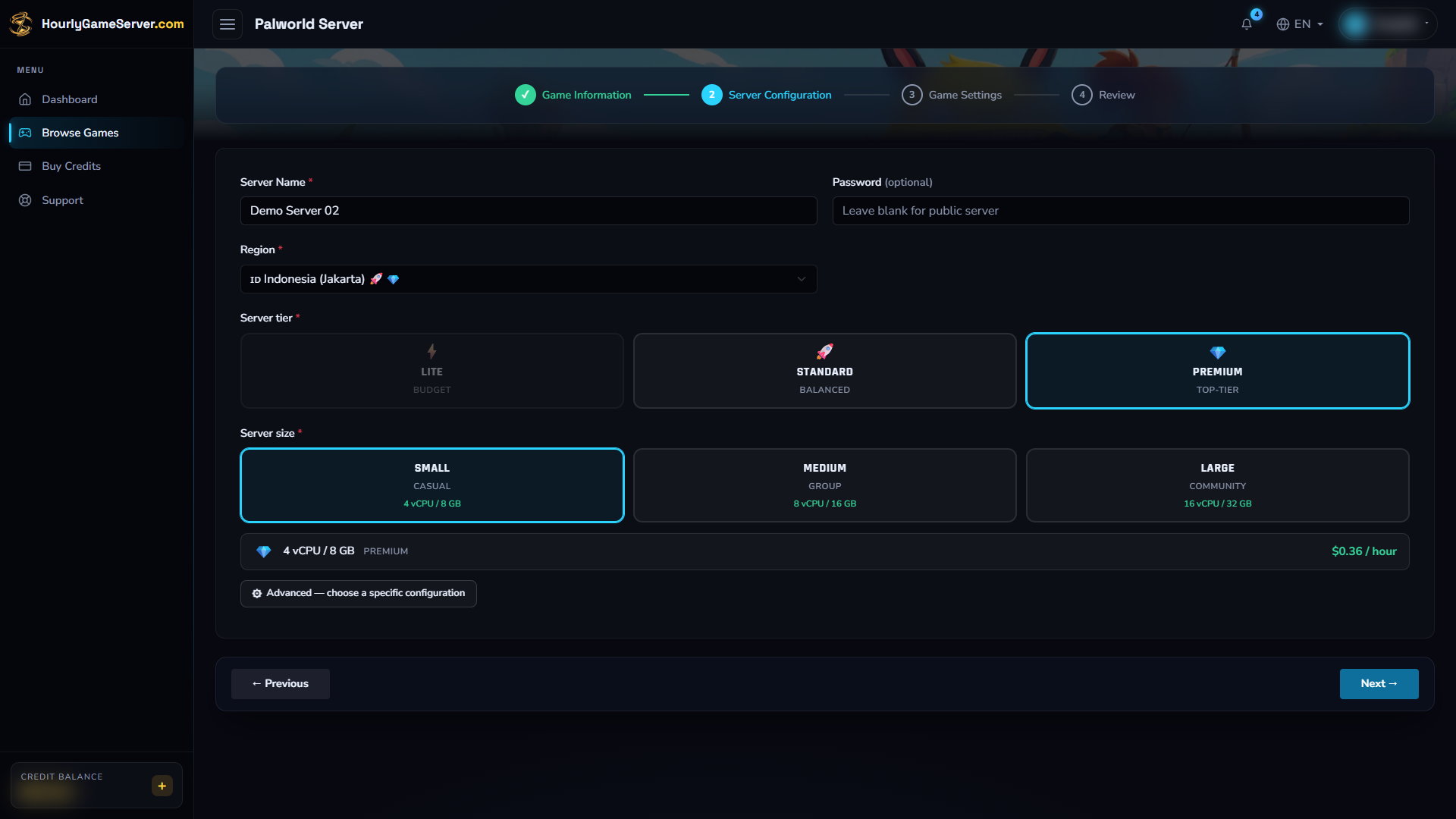
This example illustrates the form, not a guarantee that 8 GB will suit your world. Choose enough memory for your group and set a password for private access; the pictured field is empty.
- Select Next to open Game Settings. In General, review Difficulty, Server Description, and Crossplay Platforms.
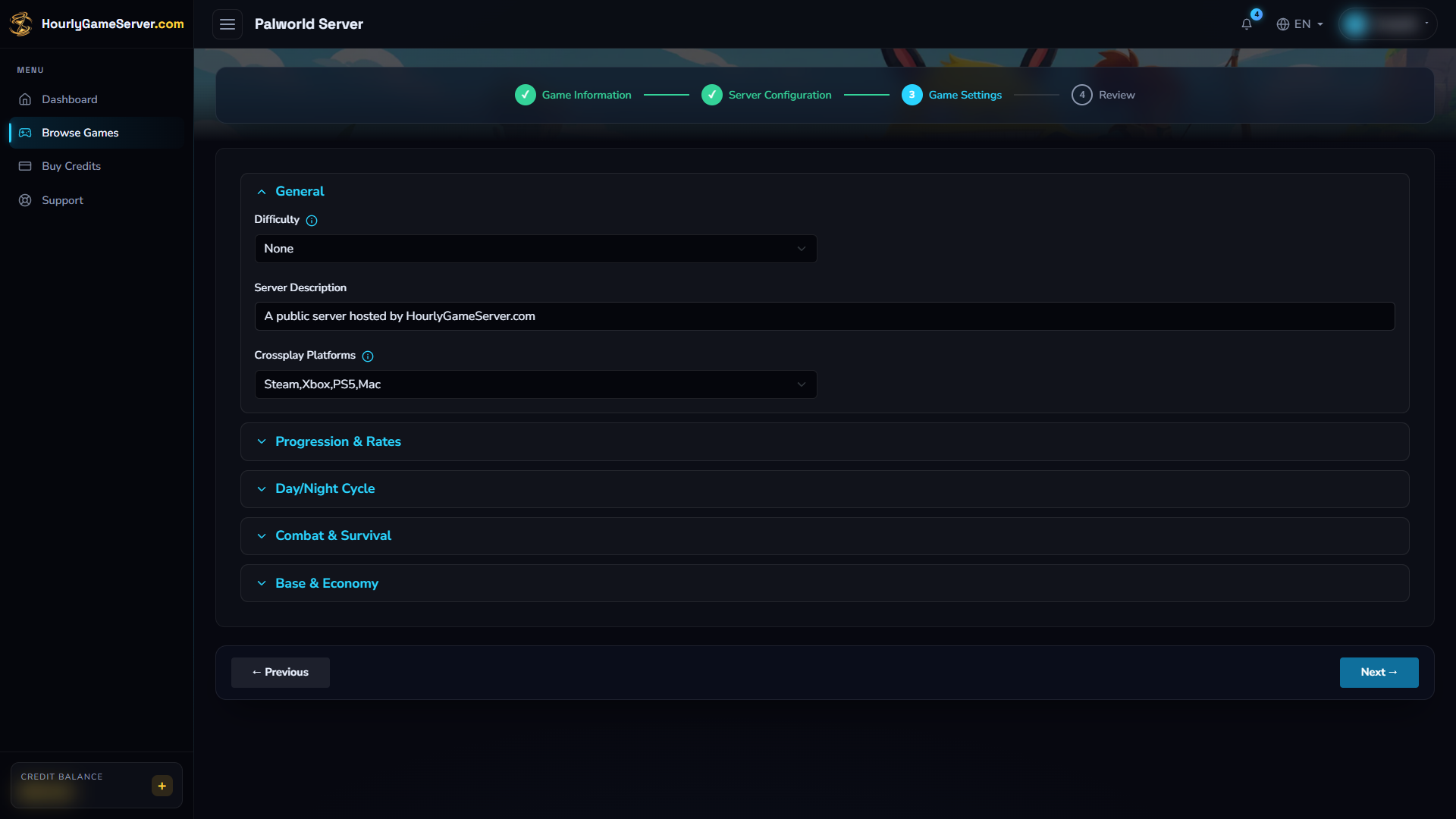
Crossplay Platforms controls who may connect, not how they join. Xbox and PS5 players still use the Community server list.
- Expand Progression & Rates, Day/Night Cycle, Combat & Survival, or Base & Economy to adjust the rules described below. Leave unfamiliar settings at their defaults.
- Select Next to review. Correct mistakes with Previous, then select Create Server. The first hour is charged upfront.
- Open the server from Dashboard and wait for Running. The game and community listing may need additional time after the status changes.
If insufficient credits leave it stopped, top up before trying to start it again. See Running Out of Credits.
Understand the game settings
The list describes the controls available in this app, which may have narrower limits than Pocketpair's full server configuration reference. Each item gives the default, followed by its range or choices where applicable, then its effect.
- Difficulty — None; None, Normal, Difficult. Difficulty selection. None is the default option, not a promise that survival or combat is disabled.
- Server Description — A public server hosted by HourlyGameServer.com. A description for players. Do not put passwords or private information here.
- Crossplay Platforms — Steam,Xbox,PS5,Mac; also Steam, Xbox, or Steam,Xbox. Platforms allowed to connect. Keep the all-platform option if PS5 or Mac players need access.
- EXP Rate — 1; 0.1–20. Experience multiplier.
- Pal Capture Rate — 1; 0.5–5. Capture-rate multiplier.
- Pal Spawn Rate — 1; 0.5–3. Pal population multiplier; higher values can increase server load.
- Egg Hatching Time (hours) — 72; 0–72. Base incubation time for a Huge Egg. Actual incubation also depends on the egg and game conditions; it is not one identical duration for every egg.
- Day Time Speed / Night Time Speed — 1; 0.1–5 each. Time progression speed. Higher values make that part of the day pass faster.
- Enable PvP / Allow Friendly Fire — Off / Off. Player-versus-player and friendly-fire rules. Agree on these with your group before enabling them.
- Enable Base Raids — On. Enables invading enemies.
- Death Penalty — All; None, Item, ItemAndEquipment, All. None drops nothing; Item drops non-equipment items; ItemAndEquipment drops items and equipment; All also drops the team's Pals.
- Lose Pals On Death — Off. A separate permanent-Pal-loss rule. Leaving this off does not cancel Pal drops from Death Penalty = All.
- Player Damage (Attack) / Player Damage (Defense) — 1; 0.1–5 each. Damage dealt / damage taken by players. A higher Defense value is not stronger armor: it increases damage taken.
- Max Bases Per Guild — 4; 1–10. Maximum bases for one guild. More bases can increase load.
- Max Base Workers — 15; 1–20. Maximum working Pals per base supported by this form.
- Harvest Drop Rate — 1; 0.5–5. Quantity gathered from resources.
- Resource Respawn Speed — 1; 0.1–3. Resource respawn interval multiplier. Despite the label, a higher interval means a longer wait.
- Work Speed — 1; 0.1–5. Work-speed multiplier.
- Max Players Per Guild — 20; 1–100. Guild membership limit, not the server's simultaneous-player capacity.
For a less punishing cooperative world, discuss Death Penalty, Lose Pals On Death, and Enable Base Raids together. To shorten progression, adjust EXP or incubation before raising Pal Spawn Rate. Change a few settings at a time so you can judge their effect.
Change settings after creation
- Warn connected players before stopping.
- Select Stop on the instance and wait for Stopped.
- Open Game Settings, expand the relevant section, change the values, and select Save Settings.
- Select Start, wait for Running, and check the result in Palworld.
Settings are locked while running or changing state, and shared users need permission to edit them. Saving does not start the server automatically. Server Settings contains the server name, join password, and hardware choices. Stopping preserves your world; deleting the server is not needed to apply a setting. See Game Settings and Server Settings.
Join your world
Through the community list
- Wait for the server to finish starting and confirm the player's platform is allowed.
- Open Join Multiplayer Game in Palworld, then select Community server in the server list.
- Search for your server name, select the matching server, and enter the join password.
This is the required route for Xbox and PS5 clients. The server's web status may become Running before it appears in search. Give the listing time to update and check that your search and filters are not hiding it.
Through an IP address
On clients that offer the direct-connect field below the server list, enter
SERVER_IP:8211, using the current IP Address from the Console, then connect and
provide the password. Do not use the query port or a multiplayer invitation code in this field.
If your client has no IP field, use the community list instead.
Use the current connection details after a restart rather than relying on an old saved IP. These instructions follow Pocketpair's connection guide and server types and platform rules.
Administration and supported features
Player management
While the server is Running, open Player Management. Allow time for the first roster to load. Confirm the correct player before choosing an action:
- Kick disconnects the player from the current session.
- Ban blocks rejoining until the ban is removed.
- Unban in Banned Players removes a recorded ban.
- Broadcast Message sends a one-time message to online players.
Shared users need permission to manage players for these actions. A stopped server cannot perform them, and actions are not queued for later. Stopping or restarting does not itself remove a ban.
Palworld does not support Make Admin through this panel. This guide does not provide an in-game admin password workflow; use the supported web moderation controls. Website sharing roles and in-game administrator rights are separate.
Repeating broadcasts and mods
The owner can open Automation > Repeating Broadcast, enable the rule, choose an interval of 5, 10, 15, 30, or 60 minutes, add at least one message, and select Save broadcast. One message repeats; several messages rotate in order, one per interval. Turn the rule off and save when no longer needed.
Messages are sent only while Running. Missed intervals while stopped are not queued for a burst when the server starts again. Use Player Management for a one-time announcement instead. See Repeating Broadcast.
Palworld has no Mods section in this app. Do not assume a third-party mod can be installed or used by every crossplay platform.
Troubleshooting
| Problem | What to check |
|---|---|
| An Xbox or PS5 player cannot find the server | Use Community server, include the platform in Crossplay Platforms, allow listing time, and check client versions and filters. Direct IP is not the console workaround. |
| Direct connection fails | Use the current IP with port 8211, check the password, and confirm Running. If there is no direct-IP field, use the community list. |
| The server crashes or slows down after longer sessions | Review memory and CPU. Low-memory sizes, increased spawn rates, and busy bases can add pressure; consider a larger size and more conservative settings. |
| New settings do not apply | Stop fully, save in Game Settings, then start again. Guild membership limits are not server slot limits. |
| No players appear or actions fail | Wait for game startup and the first roster, confirm Running, and check your manage-players permission. |
| Broadcasts are not arriving | Check the rule is enabled and saved, the interval, and Running status. Missed intervals are not replayed. |
If the problem continues, contact support with the server name, time, and visible error. Keep passwords and player identifiers out of public screenshots.