Enshrouded
Before you begin
Sign in to HourlyGameServer.com and have enough credits for the first hour. Everyone joining needs an up-to-date copy of Enshrouded. This guide covers the Steam PC version and its dedicated-server browser; it does not promise console access or PC/console crossplay.
Choose a recognizable server name and set a password if the world is for a private group. Share the password only with people you trust to play and build in the world. Owning the server on the website does not automatically grant in-game moderation rights.
Choose a region and size
Choose a Region near most of your players, then compare the available Server tier, Server size, CPU, memory, and hourly price. Small can suit a new world and a small group; larger builds, terrain changes, and more simultaneous activity may require Medium or Large.
Enshrouded is resource-intensive. Watch live CPU and Memory in the Console during normal play rather than treating a size label as a guaranteed player count. The Server Slots setting controls admission, not the hardware's performance. See Choosing a Server Tier and Server Size.
Create your server
- Open Browse Games, select Enshrouded, and continue from Game Information.
- On Server Configuration, enter Server Name and your chosen Password. Select region, tier, and size, then check the displayed hourly cost.
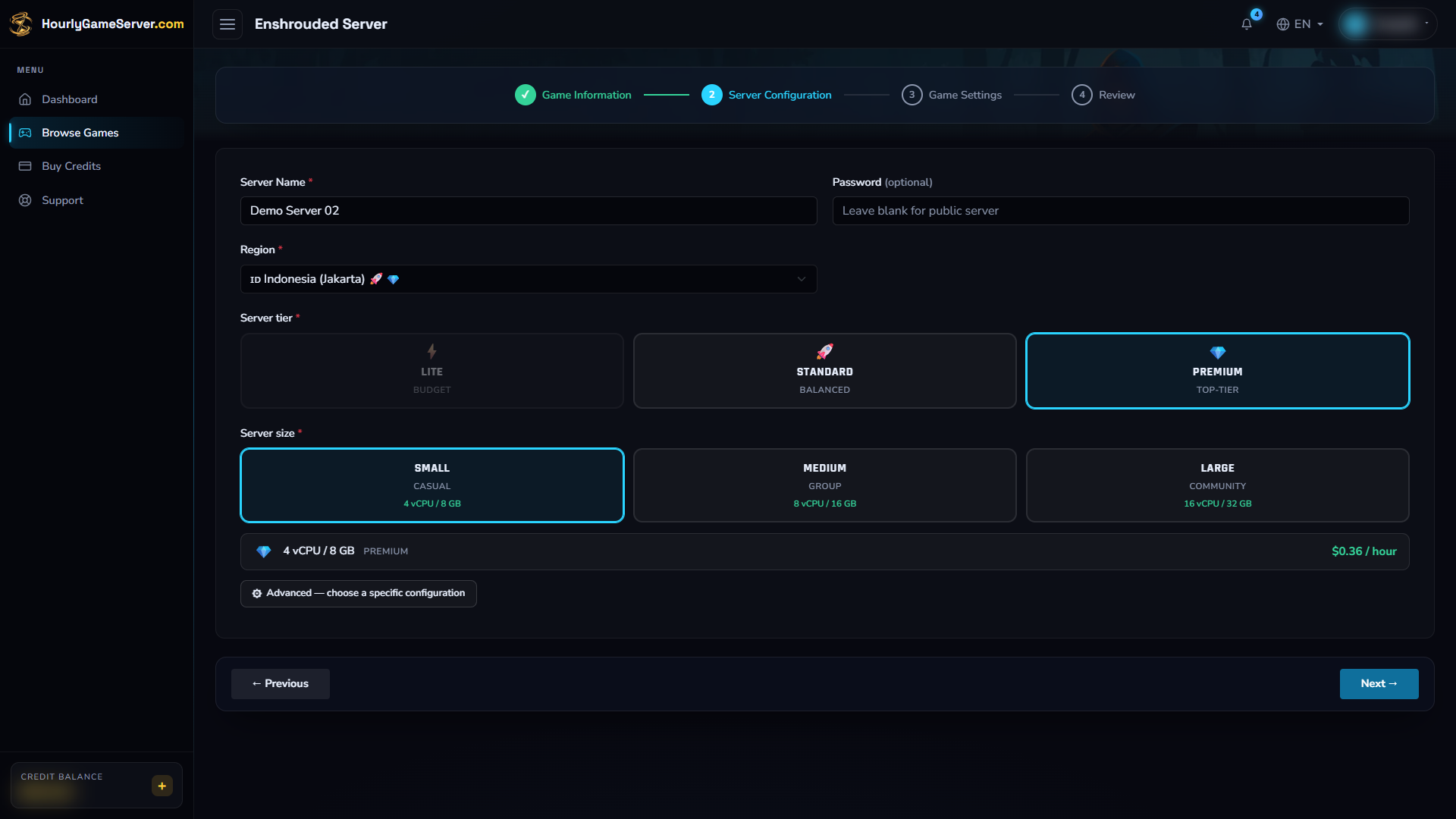
These hardware choices are examples, not recommendations for every group. Enter your own password for a private world; the field is intentionally empty in this image.
- Select Next to open Game Settings. Under Server Settings, choose Server Slots and Difficulty Preset.
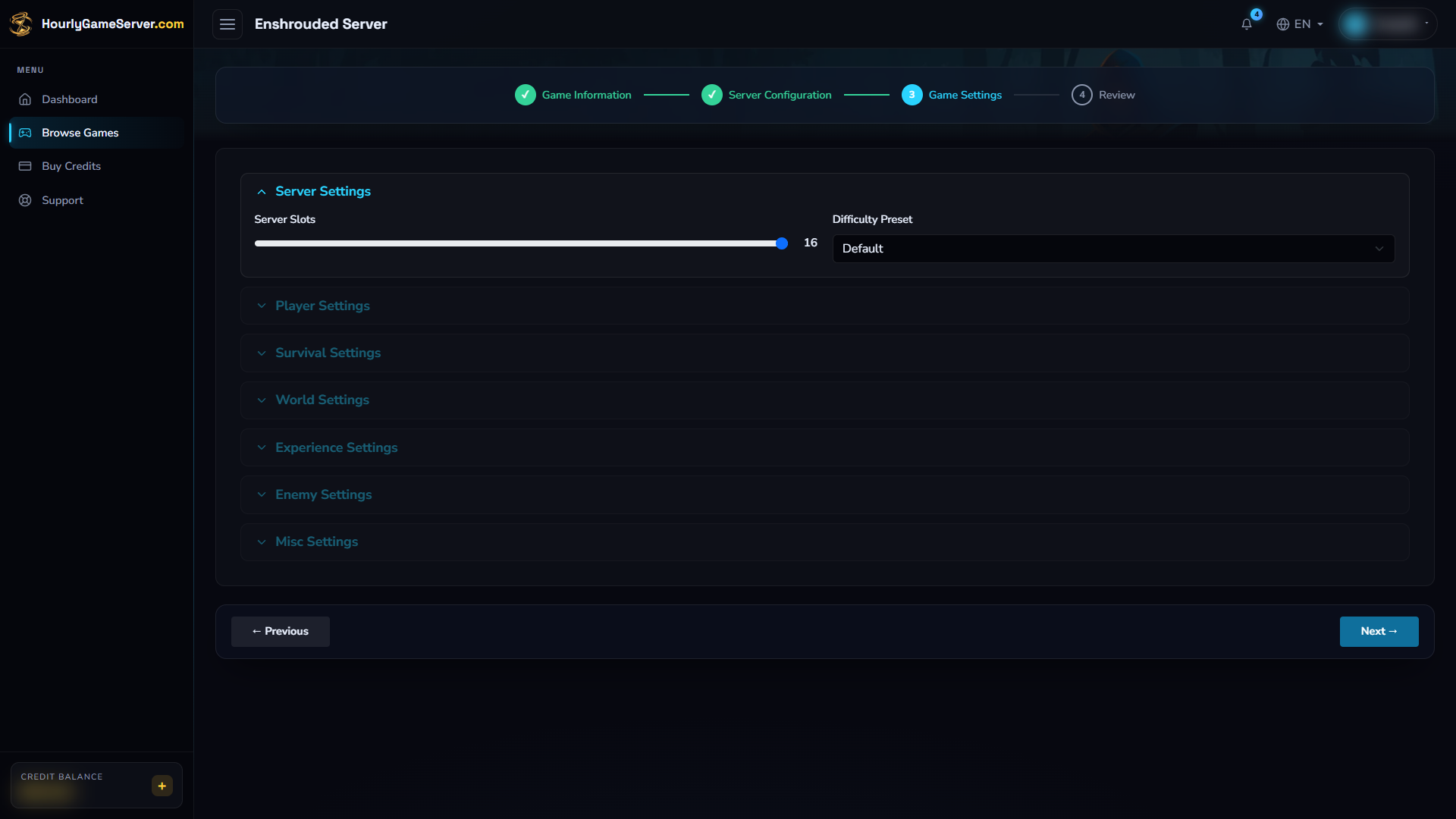
Default leaves the detailed sections dimmed. Choose Custom to apply individual gameplay rules; expanding a section alone does not enable its custom settings.
- Keep Default for the standard experience, or choose Custom to use the detailed controls. Expand the relevant sections before editing.
- Select Next and review your choices. Use Previous to correct them, then Create Server when ready. The first hour is charged upfront.
- Open the server from Dashboard. Wait for Running, then allow time for the world and its game-browser listing to become available.
If a lack of credits leaves the server stopped, top up before starting it again. See Running Out of Credits.
Understand the game settings
Server Slots defaults to 16 and accepts 1–16 players. Set it to your group's needs. Difficulty Preset offers Default, Relaxed, Hard, Survival, and Custom. Detailed gameplay controls apply only with Custom; changing an inactive custom field does not override another preset.
The list gives useful starting controls, not every possible tuning combination. Multipliers normally start at 1×. Each item gives the app's Custom default, followed by its range or other choices where applicable, then its effect.
- Player Health, Player Mana, Player Stamina — 1; 0.25–4. Player capacity for combat and exploration.
- Body Heat (Cold Resistance) — 1; 0.5, 1, 1.5, 2. Resistance to cold.
- Diving Time — 1; 0.5–2. Time available underwater.
- Weapon Durability / Hunger & Starvation — On / Off. Whether durability and hunger rules are active.
- Food Buff Duration / Shroud Time — 1; 0.5–2 each. Food-effect duration and time in the Shroud.
- Hungry→Starving Time (minutes) — 10; 5–20. Grace period when hunger rules are enabled.
- Tombstone Mode — AddBackpackMaterials; Everything, NoTombstone also available. What happens to belongings at death. Agree on the rule before changing it.
- Daytime Duration (minutes) / Nighttime Duration (minutes) — 30 / 12; 2–60 each. Real-time length of day and night, not a speed multiplier.
- Mining Effectiveness — 1; 0.5–2. Mining effectiveness.
- Plant Growth Speed, Resource Drop Amount, Workstation Speed — 1; 0.25–2 each. Gathering and production pace.
- Combat XP / Exploration XP — 1; 0.25–2 each. Progress from combat or exploration.
- Mining XP — 1; 0–2. Experience gained from mining; 0 disables this source.
- Enemy Damage / Enemy Health — 1; 0.25–5 / 0.25–4. Enemy combat strength.
- Boss Damage / Boss Health — 1; 0.2–5 each. Boss difficulty.
- Pacified Enemies — Off. Whether enemies are pacified.
Custom also exposes glider turbulence, fishing difficulty, weather frequency, enemy amount, simultaneous attackers, stun resistance, perception range, attack frequency, weapon recycling yield and upgrade cost, taming failure, and Shroud curse. Leave unfamiliar controls at their defaults and change a few related settings at a time.
Voice Chat and Text Chat both default to on. Look under Misc Settings for these controls. If the section is inactive, choose Custom before editing it. Server name and join password remain in the general server configuration.
Change settings after creation
- Tell players you are about to stop the server.
- Select Stop on the instance and wait for Stopped.
- Open Game Settings, select Custom if needed, and edit the relevant controls.
- Select Save Settings, then Start. Wait for Running and check the result in the game.
The settings are locked while running or changing state, and shared access must include permission to edit them. Saving does not restart the server automatically. Use Server Settings for the server name, password, or hardware. Do not delete the server to apply a preset. See Game Settings and Server Settings.
Join your world
- Wait for Running and the game to finish loading. Note the server name and password from your Console.
- In Enshrouded, open Play, then Join to reach the server browser.
- Enable the Show dedicated server filter and search for the server name. Check other filters if they hide password-protected or full servers.
- Select your server and enter the join password when prompted. Use the star to mark it as a favorite for later.
If it is missing from the in-game list, use the Steam client: View > Game Servers >
Favorites, select +, and add SERVER_IP:15637, replacing SERVER_IP with the current
IP Address in the Console. Return to Enshrouded and check the favorites in its browser.
Use 15637 for this Steam query/favorites address, not a port copied from another game.
These steps follow Keen Games' Dedicated Server FAQ. Friends join the dedicated world; the owner does not need to keep their own game client open.
Administration and supported features
Enshrouded has no Mods or Player Management section in the web Console. The app does not expose separate in-game administrator passwords, permission groups, reserved slots, or kick/ban controls for this game. Do not expect a website sharing role to grant those in-game abilities.
Players joining with the configured password can access inventories and edit the world and bases. Invite only trusted players; this is not a read-only visitor setup. Use a private password to control who can enter, and use the normal stop/save/start sequence when changing it through Server Settings.
The supported gameplay controls are those shown in Game Settings. A setting mentioned in Keen Games' wider server manual is not necessarily available in this app. There is no managed mod installation here. For website access, see Roles, Permissions, and Members.
Troubleshooting
| Problem | What to check |
|---|---|
| Server is absent from the list | Wait for startup, enable Show dedicated server, clear restrictive filters, and try Steam Favorites with the current IP and port 15637. |
| Joining fails | Check the current password, matching game versions, available Server Slots, and whether the server is still Running. |
| Custom changes have no effect | Confirm Difficulty Preset is Custom, save while Stopped, then start again. Named presets do not use your individual Custom values. |
| A player cannot build or expected admin actions are absent | Website roles are separate from game permissions. This app does not offer custom in-game groups or kick/ban for Enshrouded. |
| Settings are read-only | Wait for Stopped and confirm your editing permission. |
| Busy areas become slow | Observe CPU/Memory while reproducing the issue and consider more suitable hardware. Increasing Server Slots alone does not add resources. |
Contact support with the server name, time, and visible error if the issue persists. Do not send your join password.