Cost & Usage
Find which servers used your credits and download the individual charges. Cost & Usage reports hosting spending, not top-up payments.
Before you begin
Sign in to the account that owns the servers. Amounts use that account's wallet currency. Have an approximate period in mind if you are investigating a particular charge.
Review spending
- Open the account menu → Settings → Cost & Usage.
- Choose Range, such as Today, Last 7 days, or Last 30 days.
- Use Group by to select Total, By Game, By Server, or By Region.
- Read Total cost and the chart for that range. Avg / active day is an average across days with usage, not a forecast or your hourly rate.
- Change the range or grouping to compare the servers contributing to the total.
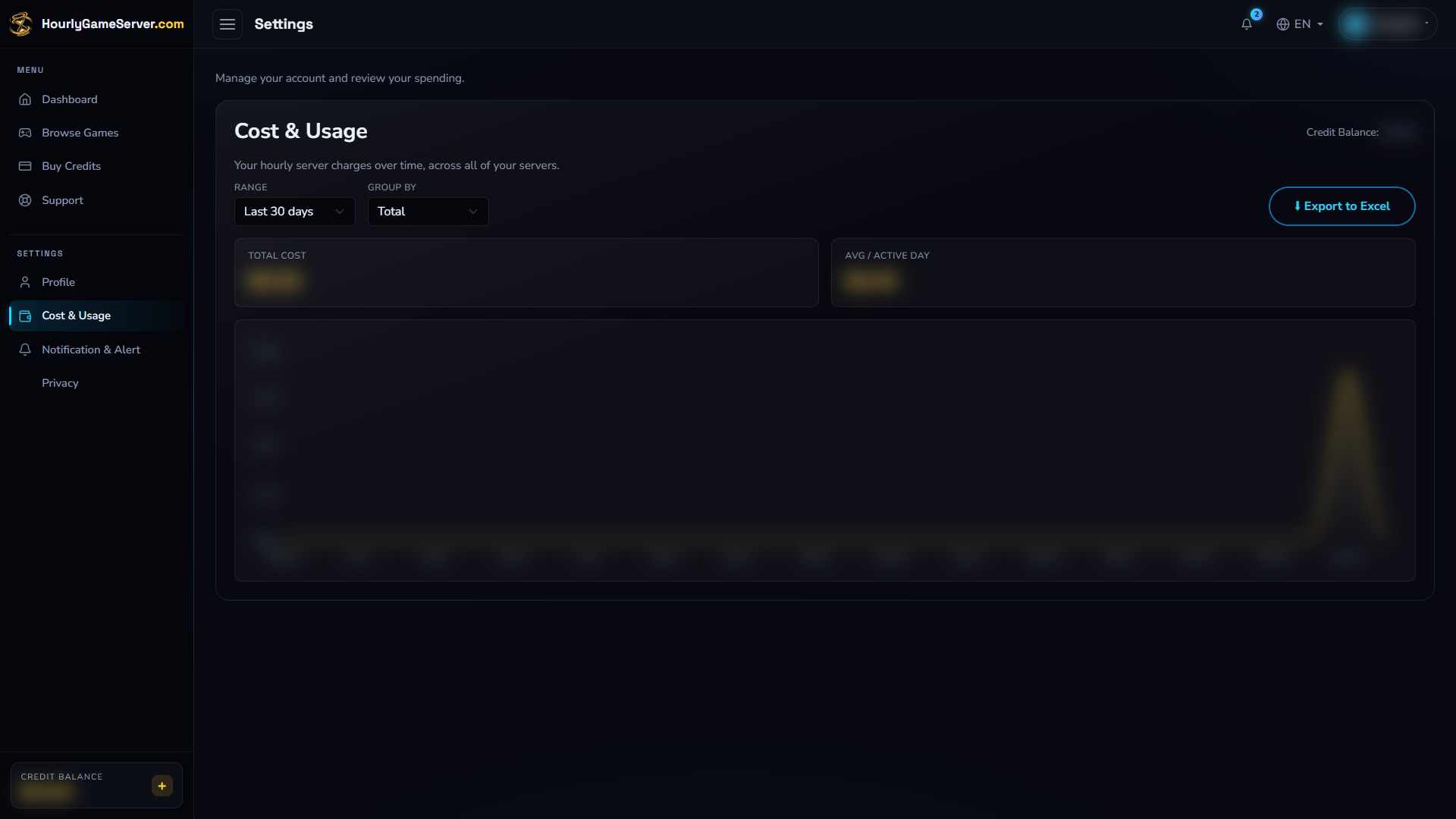
The account report offers preset ranges and grouping before export. This example uses a USD wallet; private balances, spending totals, and chart data are blurred. Changing the site language does not change your wallet currency.
The report offers preset ranges. For individual-server context, open that server's Cost Info section if available; grouping by server on the account report does not filter out your other servers.
Export individual charges
- Keep the desired Range selected.
- Select Export to Excel.
- Open the downloaded
.xlsreport in a compatible spreadsheet application. - Compare the server, charge time, amount, currency, and charge type with the activity you are investigating.
The export contains individual charges for the selected range and report scope, rather than only the chart's grouped totals. Charge timestamps in the export are UTC; allow for your local time zone when comparing a session.
Interpret the result
Several charges for a server in one day can be normal: hosting is prepaid in full-hour blocks, and a higher-cost configuration can add a separate charge. A full-hour purchase is not a minute-by-minute measurement of player activity.
No usage in this period. means the selected report has no usage to show, not that all past hosting was free. Try a wider range and confirm the account. Top-ups belong in payment receipts, not this report.
If data is missing or a charge looks wrong
Refresh after recent activity. If the report cannot load or a discrepancy remains, contact support@hourlygameserver.com with the range, server name, amount, and time. Share only relevant records, not unrelated account details. See hourly billing for charge rules.