Windrose
Before you begin
Set up a Windrose server for your crew, choose how friends will connect, and adjust the world rules before sailing. Players need an installed, updated PC copy of Windrose compatible with the server. Use the same game version across your group.
Sign in to hourlygameserver.com and keep enough credits for the first hour. Shared-server members need permission to change game settings. The official Windrose dedicated-server guide explains invite codes, direct connections, and world presets; this article covers the controls available in your hosting Console.
An Invite Code is a server-finding code, not a password. For a private crew, set a separate joining password and share both only with intended players.
Choose a region and server size
Choose a hosting region near your crew, then compare available Server tier, Server size, and hourly price. Small is a starting point for a new world and a small crew. Larger groups and busy late-game worlds may need Medium or Large. Watch CPU and Memory in the Console during play rather than treating the player limit as a performance guarantee.
The settings form recommends up to 4 players for smoother performance, even though Max Players allows 1–10. Increasing that limit does not add server resources.
The hosting region and Server Region are different choices. Server Region selects the connection service used by Invite Code mode: EU, SEA, or CIS. The official guide notes that EU covers both Europe and North America. Changing it does not move your hosting location.
Create the server
- Select Windrose from the games catalog and open its creation form.
- Enter a recognizable server name and an optional joining password.
- Choose region, tier, and size, then select Next.
- In Server Settings, choose Max Players and Connection Mode. For Invite Code mode, enter your own code so you know what to share.
- Expand World Settings, select a World Preset, and review any custom options.
- Continue to Review, check the rate and choices, then select Create Server once.
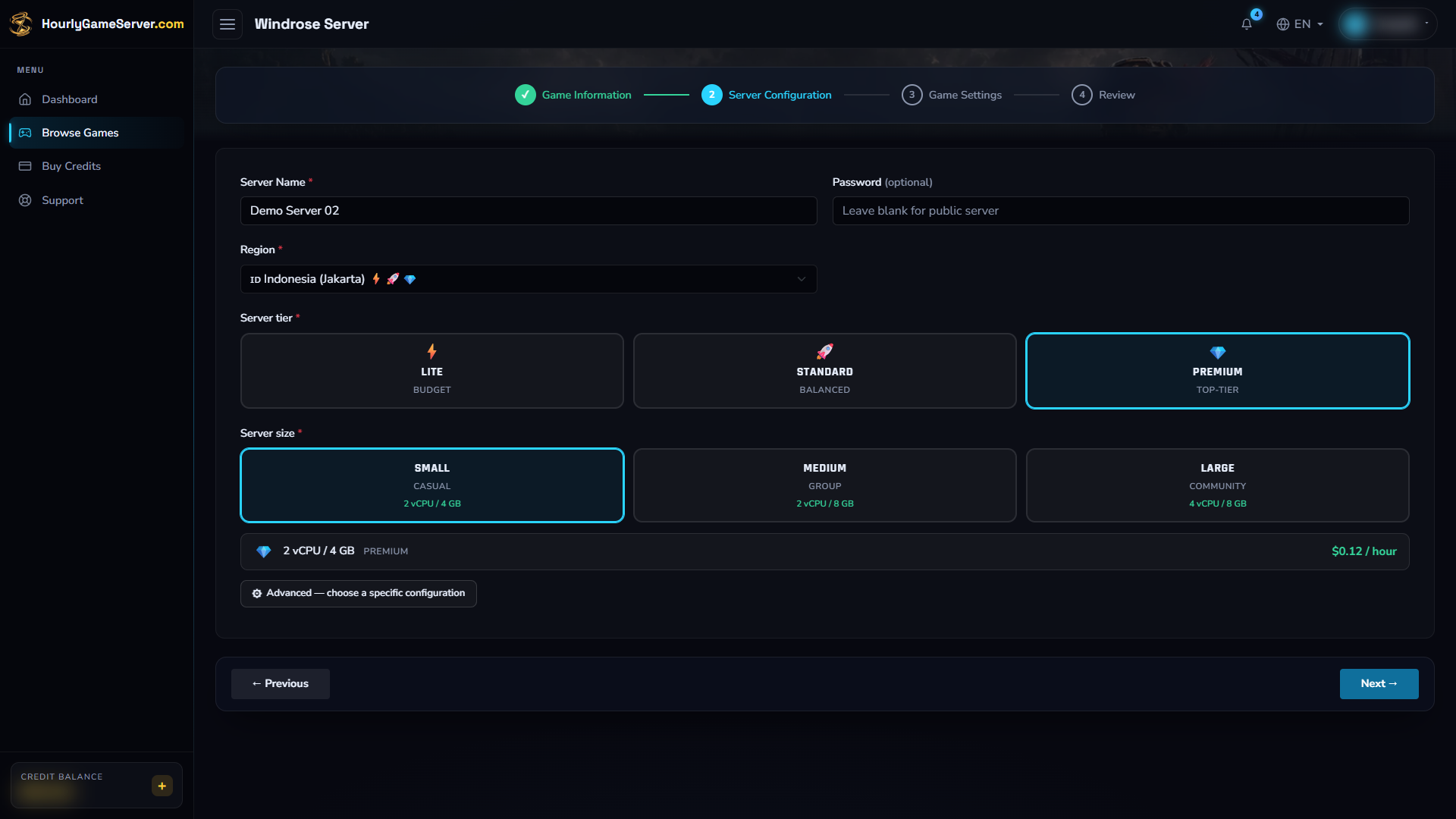
Hosting choices come before the game settings. Select a region and resources that suit your crew rather than copying the example values automatically.
One full hour is charged upfront when there are enough credits. If not, the server remains Stopped until you top up and select Start. Open its Console and follow Overview until Running before trying to connect.
Configure connections and world rules
Connection settings
| Control | Default or choices | Guidance |
|---|---|---|
| Max Players | 4; range 1–10 | Start with a limit suited to your crew and resources. |
| Connection Mode | Invite Code; Invite Code or Direct Connection | Decide which joining method to give players. |
| Invite Code | Empty; shown only in Invite Code mode | Use at least 6 letters or digits, with no spaces. Codes are case-sensitive. An empty field requests automatic generation; set an explicit code if you want a known value to share. |
| Server Region | EU; EU, SEA, CIS | Applies to Invite Code connections, not the hosting location or Direct Connection mode. |
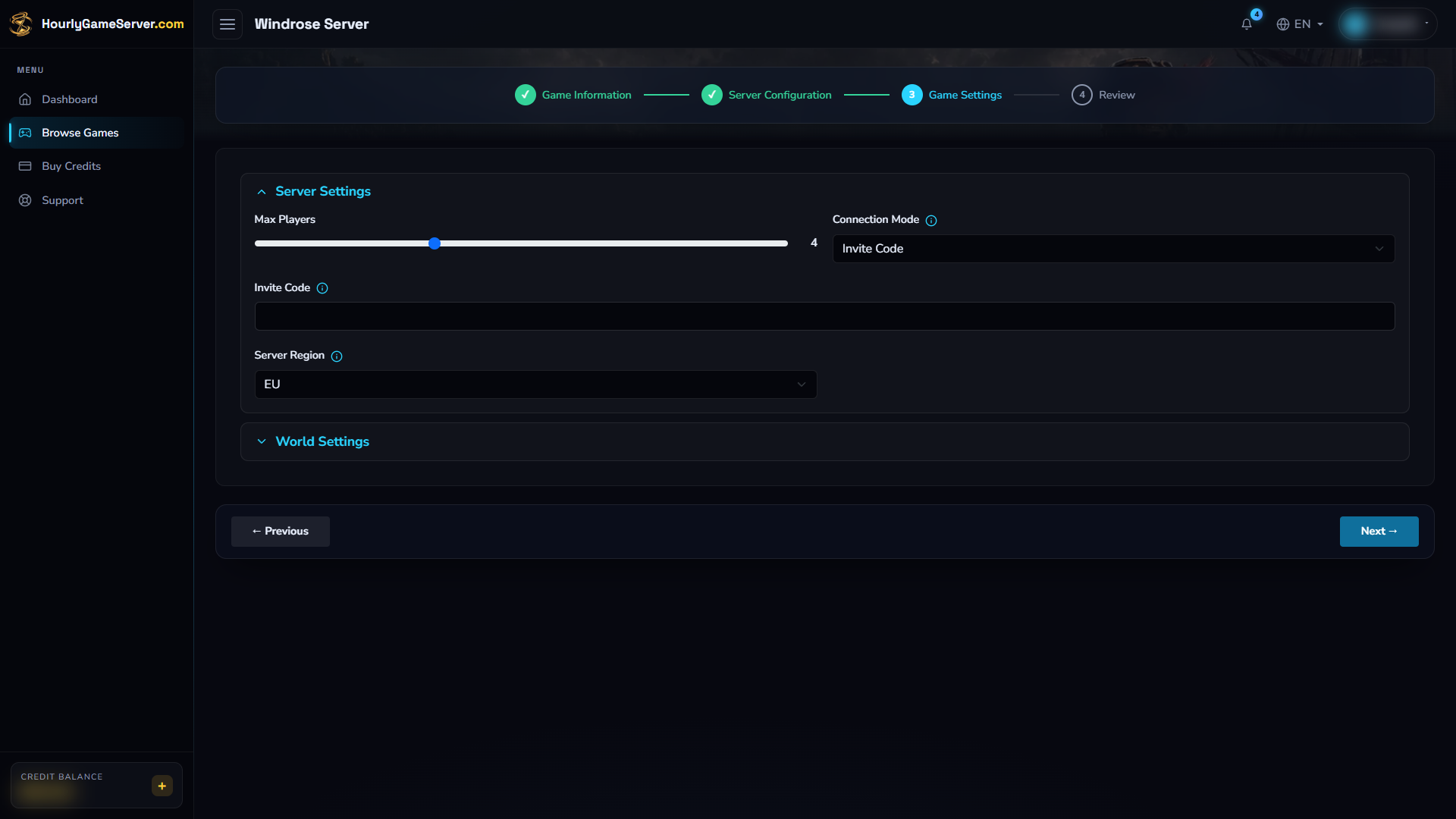
Choose Connection Mode first. For Invite Code mode, enter the valid code you intend to share; the code is separate from the joining password.
Do not paste the joining password into Invite Code. If you change the code or connection mode, tell the crew to use the new details after the next start.
Presets and custom rules
World Preset defaults to Medium, with Easy, Medium, Hard, and Custom available. Choose a preset for a simpler setup. Select Custom to make the individual controls available; those controls do not apply as custom overrides while a different preset is selected.
| Custom control | Default | Range or choices |
|---|---|---|
| Combat Difficulty | Normal | Easy, Normal, Hard |
| Enemy Health Multiplier / Enemy Damage Multiplier | 1 / 1 | 0.2–5 for each |
| Ship Health Multiplier | 1 | 0.4–5 |
| Ship Damage Multiplier | 1 | 0.2–2.5 |
| Boarding Difficulty | 1 | 0.2–5 |
| Co-op Enemy Scaling | 1 | 0–2 |
| Co-op Ship Enemy Scaling | 0 | 0–2 |
| Shared Quests | On | On or off |
| Immersive Exploration | Off | On or off |
Enemy scaling adjusts difficulty as the player count changes; ship-enemy scaling is separate. Boarding Difficulty affects how many enemy sailors must be defeated. Shared Quests completes a cooperative quest for players who also have it active; it does not mean every player receives every quest automatically. Immersive Exploration hides point-of-interest map markers.
Change a few values at a time and compare the result in-game. Switching a preset is a rules change, not a way to regenerate explored islands or replace existing progress.
Stop, save, and start
- Tell the crew to finish what they are doing before shutdown.
- Select Stop and wait for Stopped.
- Open Game Settings, expand the relevant sections, and make your changes.
- Select Save Settings, then Start.
- Wait for Running. Reconnect using the saved mode and check the changed world rules.
Game settings are locked while the server is running, starting, or stopping. A normal stop preserves progress and pauses hourly billing after shutdown completes. Starting again restores the saved world. Do not delete the server to pause a session: deletion permanently removes its save data.
Connect your crew
Join with an invite code
- Confirm that Connection Mode is Invite Code and that the server is Running.
- Share the code you saved in Invite Code, preserving capitalization.
- In Windrose, select Play > Connect to Server and enter the code.
- Check the returned server name, then connect and enter the joining password if requested.
If you left the code blank and do not know the generated value, stop the server, save your own valid Invite Code, and start it again. Do not guess from the server name or use the password as a code.
Join with a direct connection
- Save Connection Mode = Direct Connection while stopped, then start the server.
- After Running, copy the current IP Address or Domain Name from the Console.
- Open Play > Connect to Server and use the direct-connection option.
- Enter the copied address with port 7777; use
ADDRESS:7777if the game presents one combined address field. Enter the joining password when requested.
Direct connections use TCP and UDP 7777. The server also uses UDP 7778; players still enter 7777, not 7778. No server installation or home-router game-server port forwarding is needed on a player's computer.
Administration, players, and mods
Windrose does not currently provide a Player Management or Mods section in the Console. There are no browser-based kick, ban, make-admin, broadcast, or mod-install controls for this game. A hosting share role lets a member perform its permitted hosting actions; it does not grant an in-game admin capability.
Use the joining password to limit access and Game Settings for the supported world options. Do not follow another host's admin-console or mod-upload steps expecting those features to exist here.
Troubleshooting
| Symptom | What to check |
|---|---|
| Invite code finds nothing | Confirm Running and Invite Code mode; check capitalization, code length, and the saved Server Region. |
| Direct connection fails | Confirm Direct Connection was saved and the server started afterward. Copy the latest address and use 7777. |
| Password rejected | The Invite Code is not the password. Use the separate joining Password from the Console. |
| Custom controls are unavailable | Expand World Settings and choose Custom. Other presets do not enable the individual overrides. |
| Custom rules appear unchanged | Save while stopped, start again, and check the result. Existing islands and progress are not regenerated. |
| Lag with a larger crew | Lower the player limit or consider a larger size after checking CPU and Memory. A maximum of 10 is not a performance recommendation. |
| Startup stays incomplete or reports an error | Review the status message and Activity Log. Contact support with the server name, time, and error, without passwords or private joining details. |