Don't Starve Together
Before you begin
Use this guide to create a Don't Starve Together world with both the Overworld and Caves, choose its survival rules, and invite your group.
- Players need Don't Starve Together, not the single-player Don't Starve game. Use the compatible Steam desktop version and keep every player's game up to date.
- PC hosting does not provide console crossplay. Klei's shared cosmetic unlocks are not shared multiplayer servers; see the Shared Unlocks FAQ.
- Prepare a valid Klei cluster token for your online dedicated server. The token authenticates hosting; it is not a password to give players.
- Sign in to hourlygameserver.com and have enough credits for the first hourly charge shown in the creation wizard.
Get your cluster token
- In Don't Starve Together, use Account to open your Klei account, or visit Klei's Don't Starve Together Servers page.
- Sign in using the account associated with your game. Open the Don't Starve Together server area and choose Add New Server.
- Give the entry a recognizable name and copy its server token.
- In the hosting wizard, paste it into Cluster Token (required for public listing).
Keep the entire token private. It is required for the online server even if you protect the world with a join password. Do not put it in your server name, mod search, chat, or a support message. If it has been exposed, replace it through your Klei account and update the saved game setting before starting again.
Choose a region and size
Select a region near your players, then compare the available Server tier, Server size, resources, and hourly rate.
Start with Small for a typical unmodded group. The Caves are already included; there is no separate cave-enable switch to purchase or configure. A busy long-running world, more players, larger world generation, and many mods can make Medium or Large more appropriate.
Max Players sets an admission limit, not a performance guarantee. Review CPU and Memory on Overview during a normal session before changing capacity in Server Settings.
Create the server
- Choose Don't Starve Together from the games catalog and enter the creation wizard.
- Continue to Server Configuration. Enter Server Name, an optional Password, region, tier, and size. Choose a name your group can find in the game's browser.
- In Game Settings, select your mode and player rules, then paste the Klei cluster token.
- Expand the Overworld and Caves settings groups you want to customize. Decide world size, starting season, and resource or creature generation before the first start.
- Leave Install Mods empty for an unmodded world, or add compatible Steam Workshop mods.
- Check Review, including the hourly charge, and select Create Server once.
- Open the server in Console and follow Overview until Running. If insufficient credits leave it Stopped, top up and select Start.
The rented server is billed while hosting runs. Pause When Empty pauses the simulation but does not stop hosting or its hourly charges.
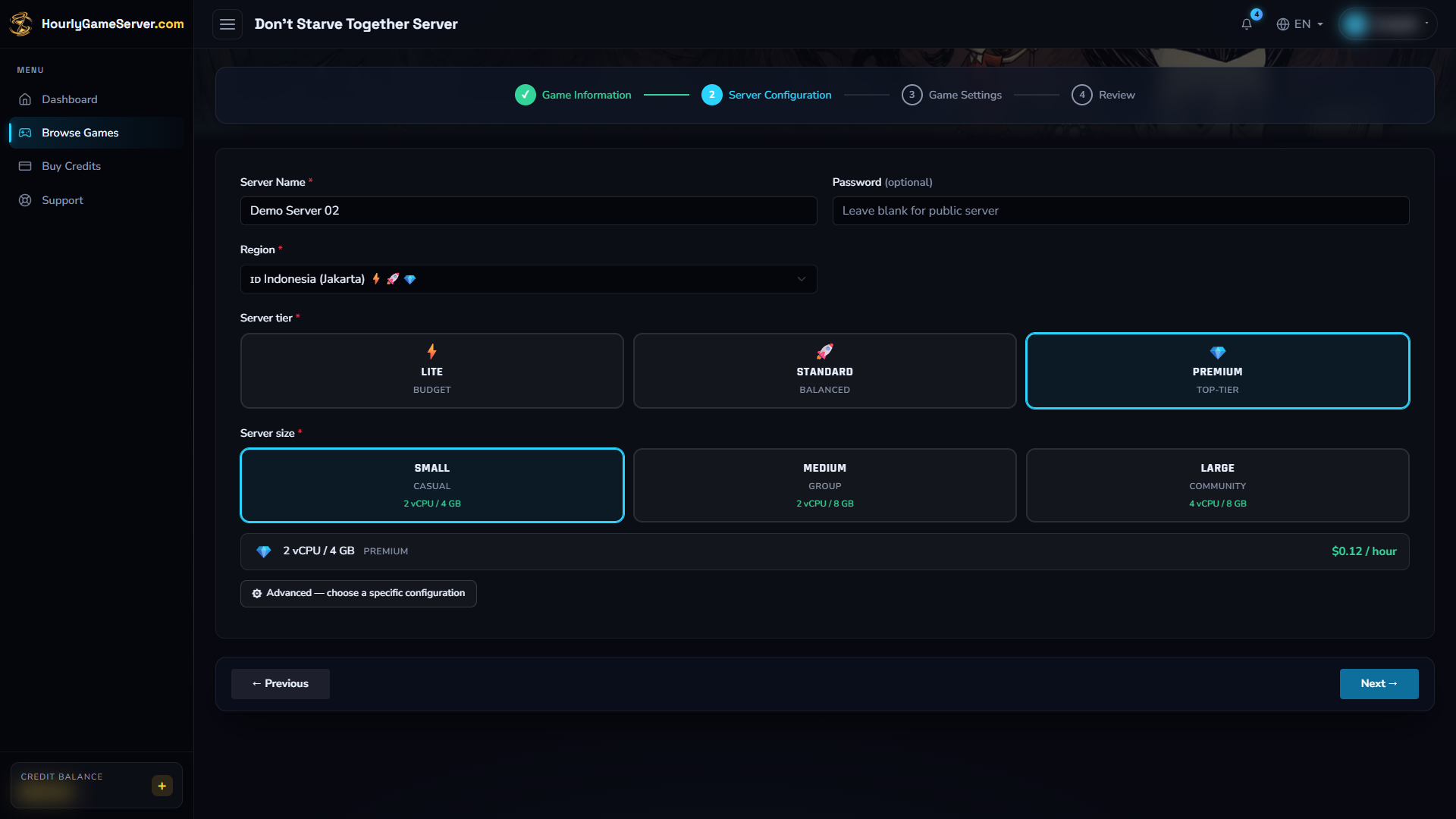
Choose a recognizable server name for your group. Jakarta, Premium, and Small are demonstration selections, not a required configuration for every world.
Choose game settings
Defaults below refer to a new creation form. Expand a group to see its fields; Overworld and Caves choices are separate even when their field labels look similar.
Server Settings
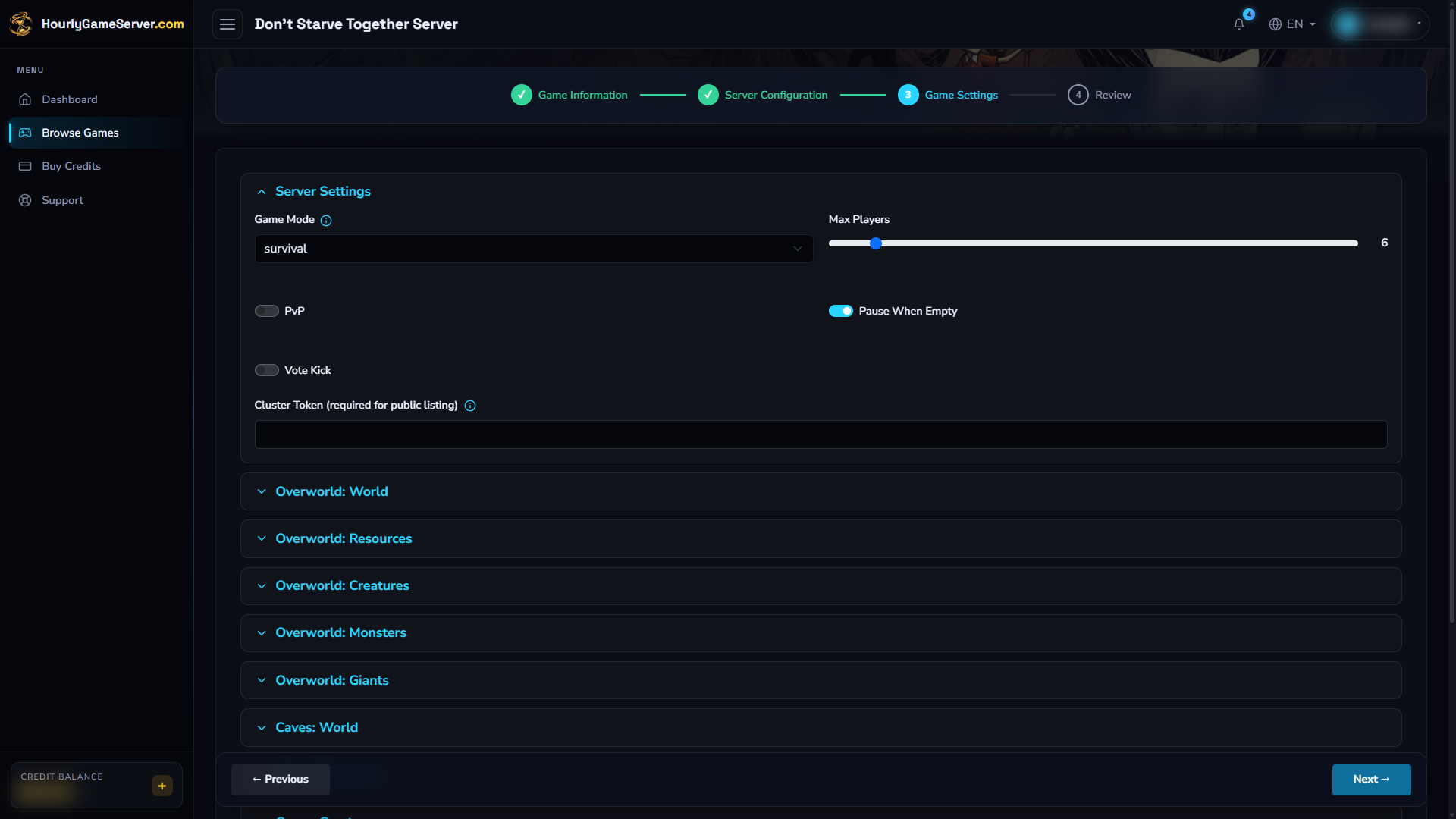
The initial Server Settings group contains the player rules and Cluster Token field. The token is deliberately empty in this example; supply your valid Klei token before creating an online server.
| Control | Default and choices | What to consider |
|---|---|---|
| Game Mode | survival; also endless, wilderness |
Survival uses ghosts and can reset after everyone dies. Endless supports revival at the spawn portal without the all-dead world reset. Wilderness starts a new character after death. |
| Max Players | 6; 1–64 |
Choose a sensible cap for your group's size and resources. |
| PvP | Off | Allows player-versus-player damage when enabled. |
| Pause When Empty | On | Pauses the game with no players connected; it is not a hosting shutdown. |
| Vote Kick | Off | Enables the game's player vote-kick system. |
| Cluster Token (required for public listing) | Blank | Paste your own valid Klei token before the first start. Keep it separate from the join password. |
Overworld and Caves
Most world controls start at default, meaning the game's preset behavior. For frequency and
abundance controls, the common choices are never, rare, default, often, and always.
These describe the individual setting, not a guaranteed number of creatures or resources.
| Group or control | Defaults, choices, and coverage |
|---|---|
| Overworld: World — World Size | Default: default. Choices: small, medium, default, huge. Size of the newly generated surface world. |
| Starting Season | Default: default. Also winter, spring, summer, autumnorspring, winterorsummer, random. The initial season; choose before the world is generated. |
| Autumn / Winter / Spring / Summer | Defaults: each default. Options: noseason, veryshortseason, shortseason, default, longseason, verylongseason, random. |
| Day/Night Cycle | Default: default. Options include longer day/dusk/night, no day/dusk/night, or only day/dusk/night. Extreme choices substantially change survival. |
| Rain / Lightning / Frog Rain / Wildfires | Defaults: each default; common frequency choices. Surface weather and environmental threats. |
| Regrowth | Default: default. Choices: veryslow, slow, default, fast, veryfast. Surface regrowth behavior. |
| Overworld: Resources | Defaults: all default; common abundance choices. Trees, Grass, Saplings, Flint, Rocks, Ice, Berry Bushes, Carrots, Mushrooms, Reeds, and Cactus. |
| Overworld: Creatures | Defaults: all default; common abundance choices. Beefalo, Pigs, Rabbits, Birds, Catcoons, Bees, Penguins, Volt Goats, Tallbirds, and Ponds. |
| Overworld: Monsters | Defaults: all default; common frequency/abundance choices. Spiders, Hounds, Hound Mounds, Tentacles, Clockworks, Lureplants, MacTusk, and Merms. |
| Overworld: Giants | Defaults: all default; common frequency/abundance choices. Deerclops, Bearger, Moose/Goose, Dragonfly, Antlion Tribute, Treeguards, Poison Birchnut Trees, and Krampus. |
| Caves: World — Cave World Size | Default: default. Choices: small, medium, default, huge. Size of the newly generated cave world. |
| Earthquakes / Cave Rain / Lightning | Defaults: each default; common frequency choices. Cave environmental settings, independent of the Overworld group. |
| Cave Light | Default: default. Choices: veryslow, slow, default, fast, veryfast. Cave lighting option as offered by the game settings form. |
| Caves: Resources | Defaults: all default; common abundance choices. Mushtrees, Ferns, Lichen, Light Flowers, Worm Lights, Cave Grass, Cave Saplings, and Cave Rocks. |
| Caves: Creatures | Defaults: all default; common abundance choices. Bunnymen, Slurtles, Rock Lobsters, Splumonkeys, Batilisks, Slurpers, and Cave Ponds. |
| Caves: Monsters | Defaults: all default; common frequency/abundance choices. Cave Spiders, Depths Worms, Fissures, Worm Attacks, Spiders, Hounds, Tentacles, and Clockworks. |
World-generation settings do not rebuild an existing Overworld or Caves save. In particular, changing world size, starting season, or resource distribution is not a way to regenerate a world without losing progress. Start with defaults if uncertain, and change a few settings at a time rather than removing essential food or light sources.
Save and apply changes
- Warn players, select Stop, and wait until the server is Stopped.
- Open Game Settings, expand the relevant group, change its values, and select Save Settings.
- Select Start, wait for Running, then join to check the result.
You need the shared-server permission to manage settings if you are not the owner. Wait for startup or shutdown to finish before editing. Saving alone does not start a stopped server. Use Stop rather than Delete to keep your world for the next session; review Save Data and Backups before any major changes.
Find and join the world
- Wait for Running, then allow the game a little time to finish starting and register its listing.
- Launch Don't Starve Together online and select Browse Games.
- Search for the exact Server Name you chose. Check browser filters if a password-protected, modded, or different game-mode server is hidden.
- Select the matching world and join. Enter the server's join Password if requested, not the Klei cluster token.
- Allow any required server-mod downloads to finish. Keep your game version current.
The Console also shows Domain Name and IP Address for connection troubleshooting. The
Overworld game port is 10999; typing ADDRESS:10999 into the browser's name search is not the
same as connecting. Join the Overworld normally, then use an in-world cave entrance to travel
to the included Caves.
If the world is missing, recheck the token, game version, and filters before repeatedly restarting. A password protects joining; it does not require removing the server from the public browser.
Manage Steam Workshop mods
Use Install Mods while creating the server or Mods afterward.
- Search for a Don't Starve Together Workshop project, or paste its Workshop URL or numeric item ID. If name search finds nothing, try the direct item link.
- Confirm that it is a Don't Starve Together server mod, not a single-player Don't Starve mod or a client-only interface mod. Check required dependencies and compatibility.
- Add the required projects and select Save Mods. When Stopped, changes apply at the next start. While Running, Save & Restart disconnects players and restarts with the new list.
- Wait for installation and test both surface play and travel to the Caves.
The same selected server-mod list is applied to the Overworld and Caves. The integrated picker enables projects with their default mod configuration; it does not provide individual mod-option editing. It does not require your personal Steam password or a Workshop download token.
Client-only mods belong in the player's own game, not the server selection. Follow each mod's client requirements. Removing world-content mods can damage progress or prevent a save loading, so make small changes and preserve important worlds. Read Managing mods for the save/restart workflow.
Player moderation and administration
Don't Starve Together does not currently have a Player Management section in the hosting Console. Do not expect the website's Kick, Ban, or Make Admin actions for this game.
Vote Kick is the exposed player-moderation option. Enable it in Game Settings if you want the game's vote-kick system available to your group. In-game permissions and any existing administrator rights are separate from the website's sharing roles; sharing a Console role is not a way to grant DST administrator rights.
Troubleshooting
| Symptom | What to check |
|---|---|
| Server does not appear | Wait for startup, remove restrictive browser filters, verify the server name and current client version, and check the Klei token. |
| Cluster-token or authentication problem | Copy the correct token from your own Klei account, save it while stopped, and start again. Never share it with players. |
| Wrong password | Use the join password, not the cluster token. Ask the owner privately if you do not know it. |
| Mod mismatch or loading failure | Check the Workshop project is for DST, review its dependencies, and update the client. Review the last mod change before removing world-critical content. |
| Caves fail while the surface works | Check mods support both worlds and give startup time to finish. Record the error and contact support rather than deleting the Caves save. |
| World settings seem unchanged | Saved terrain is not regenerated by a settings save. Verify whether the change concerns initial generation. |
| World freezes when the last player leaves | Expected with Pause When Empty on. Stop hosting from Console when you want billing to pause. |
| Performance worsens as the world grows | Compare CPU/Memory, player count, world size, and mods; consider a larger server size. |
Use the server's support option if problems persist. Include the time, game version, visible error, and recent settings or mod changes. Keep cluster tokens, passwords, and account details out of messages and screenshots.