Rust
Create a Rust world for PC players, configure its population and rules, and connect directly from the game.
Before you begin
- Each player needs an updated copy of Rust on Steam for PC. Rust Console Edition is a different product and cannot join this PC server.
- Sign in to hourlygameserver.com and prepare credits for the first hour shown during creation.
- Decide your initial world size and seed before players begin building.
- No Steam GSLT, Steam account password, or external RCON credentials are required for this setup. Use the app's player-management controls for supported administrative actions.
Do not rely on the creation form's optional password as a verified Rust access restriction. This guide does not offer a password-protected or whitelist-only Rust setup. If private access is essential, confirm a supported solution with support before creating the server. An unlisted server or an unshared address is not an access-control mechanism.
Choose a region and size
Choose a region close to your players and compare the resources and price on each available Server tier and Server size card.
Rust needs substantial memory, especially as the map and number of buildings grow. Facepunch's server guide lists 12 GB free RAM as a starting requirement and says a 6000-size map uses more. Do not choose Small solely because it is cheapest: compare its actual memory with that guidance. Consider Medium or Large for more players, larger maps, or long-lived worlds.
Watch CPU and Memory during real play. Max Players is a connection limit, not a guaranteed supported population, and increasing Server Tickrate adds CPU demand.
Create the server
- Open Games, select Rust, and open its creation form.
- Enter a recognizable server name. Leave the optional password blank rather than treating it as verified privacy protection.
- Choose the region, Server tier, and Server size, checking memory and hourly cost.
- In game configuration, select the initial world size, seed, and player limit. Keep Update Branch on public for normal Steam clients. Expand the remaining sections to review gameplay choices.
- Review the configuration and submit creation once. The first hour is charged upfront if your credits cover it.
- Open the server's Overview in Console. Wait for Running before joining; world generation and updates can make first startup longer. If insufficient credits leave the server Stopped, top up and select Start, not another creation request.
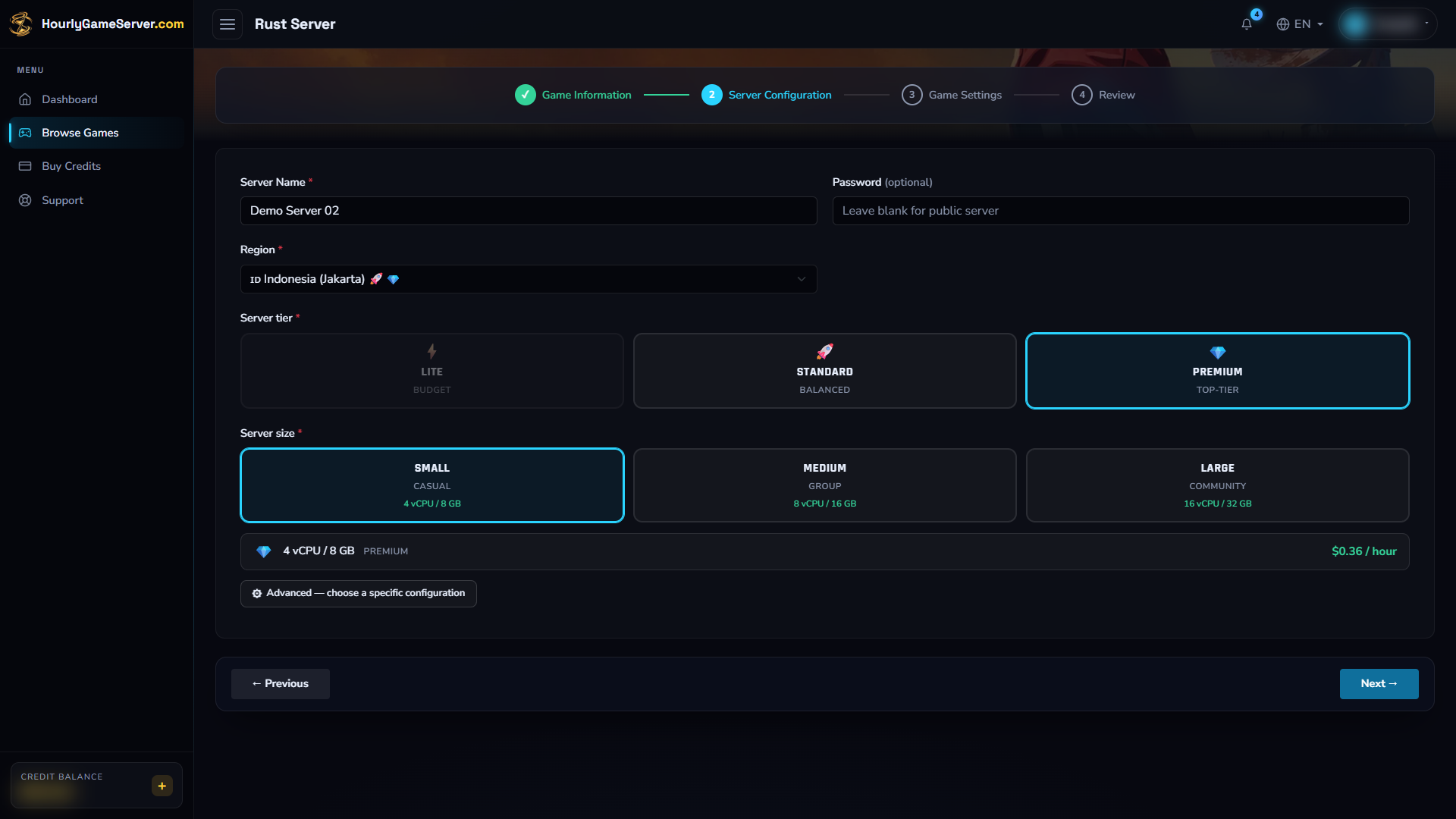
This image shows where to choose hosting, not a recommended Rust capacity. Compare the available memory with your world's requirements before continuing.
Configure the world and gameplay
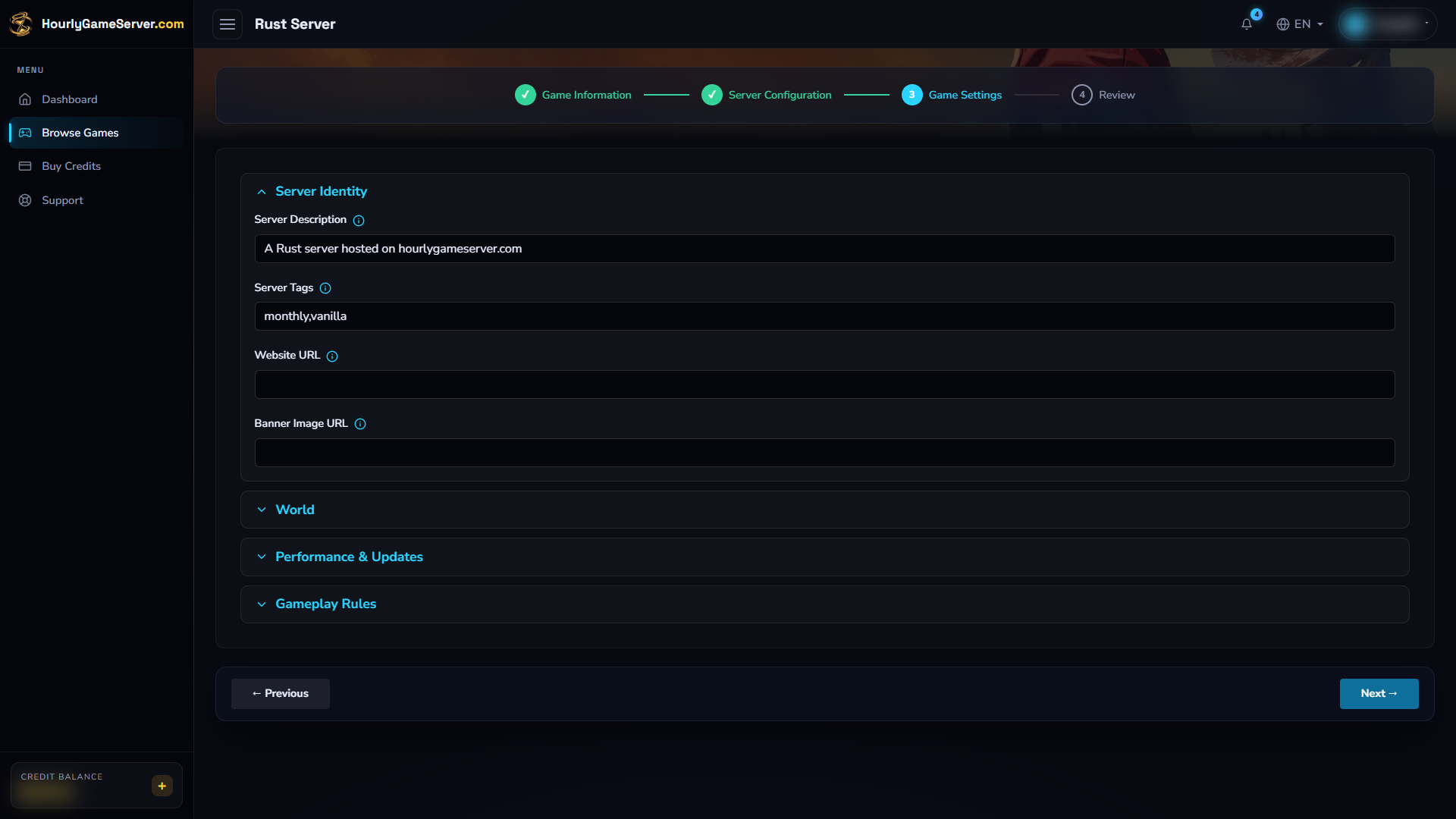
Review the server identity, then open the other groups for world and gameplay settings. Rust needs no GSLT; do not treat the optional password field as verified access protection.
The following values are defaults and ranges shown in the form.
| Setting | Values and guidance |
|---|---|
| Server Description | Defaults to a hosting description. Explain the community and rules in a short description. |
| Server Tags | Default: monthly,vanilla. These are comma-separated browser labels, not an automatic wipe schedule. |
| Website URL / Banner Image URL | Empty by default. Optional public community website and banner. Do not put private links or access tokens here. |
| World Size | Default: 3000; range: 1000–6000. Larger maps generally need more memory. |
| World Seed | Default: 12345. Determines procedural generation together with world size and game version. |
| Max Players | Default: 50; range: 10–200. Set an admission limit appropriate to the available resources. |
| Server Tickrate | Default: 30; range: 10–60. Higher values increase simulation CPU demand. Start at 30. |
| Update Branch | Default: public; also staging and release. Keep public unless deliberately testing with matching clients. |
| PvE Mode | Off by default. Enables Rust's PvE rules; this is not a whitelist or a complete anti-griefing solution. |
| Building Stability | On by default. Enables structural stability checks. |
| Instant Crafting | Off by default. Exposed as a gameplay option; do not assume every recipe or game version supports the requested behavior. |
| Gather Rate Multiplier | Default: 1; range: 1–10. Leave at 1 for vanilla. Higher gathering rates need compatible plugin support; the slider alone is not a verified modded setup. |
| Decay Scale | Default: 1; range: 0–2. 1 is normal decay; 0 disables decay. Reduced decay can increase the long-term building load. |
| Install Oxide / uMod | Off by default. Optional extension framework, not a plugin selection or upload tool. |
Facepunch displays up to four server tags.
Use truthful tags and only one from each mutually exclusive group, such as wipe frequency.
Typing weekly does not schedule a weekly wipe.
World size and seed describe world generation, not a save-preserving map editor. Changing them can select or generate a different world; it does not reshape existing buildings onto a new map. Do not experiment on a world you want to keep. Read the save-data guide and contact support before a world reset or migration.
When revisiting saved settings, recheck the world size, seed, branch, extension toggle, URLs, and gathering value against your intended configuration before saving. If values unexpectedly return to defaults or appear invalid, cancel the change and contact support rather than overwriting a working setup.
Apply changes safely
- Notify players and finish the current activity.
- Select Stop and wait for Stopped. A large world may take time to finish stopping.
- Open Game Settings and carefully review both changed and unchanged fields.
- Select Save Settings and wait for confirmation.
- Select Start, wait for Running, then reconnect to check the world and behavior.
Saving does not apply a live change by itself. Everyone is disconnected during stop/start. Do not delete the server as a way to restart it or apply settings. Change hosting region, tier, or size through Server Settings.
Connect and invite players
Copy the current IP Address or Domain Name from Overview. Start Rust through Steam, reach the main menu, and press F1. Enter:
client.connect ADDRESS:28015
Replace ADDRESS with the copied domain or IP, without a website prefix. Facepunch also
documents the short form connect ADDRESS:28015. Normal play uses UDP 28015.
Do not use an RCON or companion-app port as the player connection port.
Direct connection is the recommended route here. Do not depend on finding the server in the community browser: browser discovery is separate from a working game connection and is not guaranteed. No GSLT is needed to perform this Rust setup.
Player management and mods
While running, Player Management lets authorized users list connected players, Kick, Ban, Unban, Make Admin, and send broadcasts. Confirm the player's SteamID64, not just the display name.
Make Admin grants full in-game owner-level administration, not a limited helper role. Only grant it to someone you trust; they may need to reconnect for Rust to recognize the new access. This does not grant website billing or account permissions. The app does not provide a matching remove-admin action; ask support about revocation before granting access you may need to withdraw.
There is no Mods section, plugin upload interface, or plugin-permission editor for Rust. Turning on Install Oxide / uMod does not install a gathering or whitelist plugin. Do not treat that toggle, or the gathering slider, as proof that a customized ruleset is ready. External RCON setup is not part of the supported customer workflow described here.
Troubleshooting
- Slow first startup: allow updates and world generation to finish. Check status and available memory instead of repeatedly stopping and starting.
- Cannot join: wait for Running, copy the current address, use 28015, and update the PC Steam client. A staging client or Rust Console Edition will not match a normal public server.
- Not found in the browser: try the direct F1 connection. A missing listing does not prove the server is offline; contact support if browser advertising is essential.
- Wrong world or reset concern: stop making changes and contact support. Do not delete the server or repeatedly change the seed in an attempt to recover progress.
- Gathering or crafting did not change: do not assume Oxide alone installs the required plugins. Keep vanilla defaults unless support has confirmed your intended configuration.
- Settings unexpectedly reverted: cancel before saving and report the affected fields.
- Lag as the world grows: inspect CPU and Memory, lower the population limit, retain a reasonable tickrate, or increase size. A larger world is not a performance fix.
- Admin or moderation action fails: wait until startup finishes, verify the SteamID64 and your management permission, then have a newly promoted administrator reconnect.
For support, provide the server name, approximate time, and a sanitized error description. Keep private addresses, account information, and any credentials out of public screenshots.