Roles, Permissions, and Members
Use Roles & Sharing to give people only the access they need. Do not share your own sign-in account. Managing roles and memberships requires Manage sharing permission.
Built-in roles
| Role | Access |
|---|---|
| Owner | All permissions, including permanent deletion. This is the creator's seat; it cannot be shared by a role link. |
| Administrator | All permissions except permanent deletion. |
| Player | View server information and the Activity Log, without management permissions. |
Built-in roles cannot be deleted or have their permission sets edited. Use a custom role for a different combination. A role with broad permissions is not a transfer of server ownership.
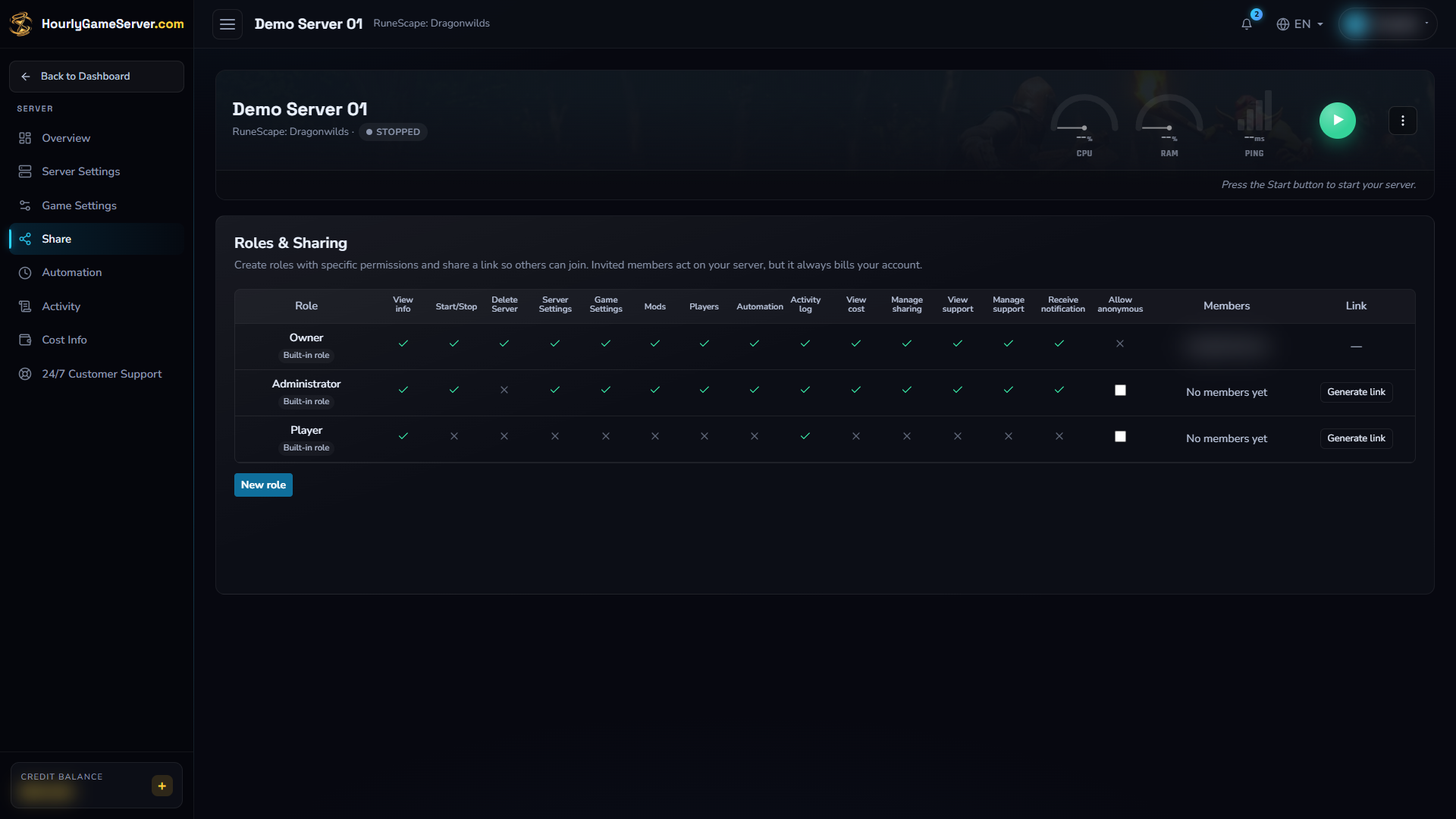
Built-in roles on an existing stopped Dragonwilds example. The owner's identity is blurred. No members have been invited and no share links have been generated in this example; viewing these roles does not grant anyone access.
Understand permissions
The permission matrix uses these controls:
| Permission | What it allows |
|---|---|
| View info | View server information and read-only settings. |
| Start/Stop | Start, stop, and, where offered, restart. |
| Delete Server | Permanently delete the server and saves. |
| Server Settings | Change region, tier, and size. |
| Game Settings | Save supported game options. |
| Mods | Change mods for supported games. |
| Players | Use supported player-management actions. |
| Automation | Edit scheduling and supported broadcast rules. |
| Activity log | Read server activity. |
| View cost | See server cost information. |
| Manage sharing | Manage roles, members, and links. |
| View support | Read support conversations and attachments. |
| Manage support | Open a support case and send or edit permitted messages. |
| Receive notification | Receive eligible server notifications, subject to personal notification settings. |
Game support and access type still matter. For example, granting Players does not add player management to an unsupported game. Support conversations require signed-in access.
Create a custom role
- Open Roles & Sharing, then select New role.
- Enter Role name and an optional Description.
- Select the minimum Permissions needed.
- Leave anonymous access off unless anyone holding the link should have those permissions.
- Select Create role and verify the new row in the matrix.
- Follow Share Links to invite people.
Review Start/Stop, configuration, Automation, Manage sharing, and Delete Server carefully. They can start paid sessions, interrupt players, grant further access, or permanently remove data.
Review and remove members
Opening a login-required link while signed in adds the visitor to that role. Their Console then shows the server as Shared.
In the role's Members list, choose Remove for the intended person and confirm. Check their other roles too: permissions from multiple memberships combine. Removing one membership does not remove permissions granted by another.
Deleting a custom role removes access from that role for all its members. Revoke link stops new use of the link but does not remove existing login-based memberships. Anonymous visitors do not appear in Members.
A member who wants to leave can use the shared server's three-dot menu in Console and select Remove. Leaving removes all their memberships on that server; it does not delete the owner's server.
Who pays and where to get help
The owner pays hourly and configuration charges, regardless of who used a permitted control. A member's credits do not fund a shared server.
If a needed control is absent, ask someone with Manage sharing to review your access rather than requesting their sign-in details. See Share Links and Access for membership and anonymous-link differences.