Team Fortress 2
Run a Team Fortress 2 community match with stock map rotations, configurable team rules, and player moderation.
Before you begin
Use the current PC Steam version of Team Fortress 2. This guide does not describe joining from the console editions. Sign in to hourlygameserver.com and prepare enough credits for the first hour shown in the creation form.
For public server-browser advertising, create a Steam GSLT Token at Steam Game Server Account Management, using App ID 440. The token is for the game, not the dedicated-server download's App ID. Use one token per server and keep it private.
Steam requires an unrestricted, non-limited account with a qualifying registered phone and ownership of the relevant game. A community ban or account lock can prevent token creation. See the current Steam requirements if you cannot generate one. Tokens can expire after long inactivity or change after a Steam password reset.
Without a valid token, do not expect a public browser listing. Direct-IP joining is a separate option. A GSLT is never the password you give players.
Choose a region and size
Choose a region near your players, then compare the available Server tier and Server size cards and their hourly rates. Small is a reasonable starting point for a small stock-map match. Move toward Medium or Large as concurrent players and match activity grow.
The Max Players setting is an admission limit, not a promise that every size can comfortably run that many players. Check live CPU and Memory during busy play. The game-specific Server Region setting below only describes your server to the browser; it does not move your hosting location.
Create the server
- Open Games, choose Team Fortress 2, and open the creation form.
- Enter a server name. Set an optional join password if you want to limit entry to people who know it.
- Select the hosting region, Server tier, and Server size. Check the hourly rate.
- In game configuration, enter the GSLT if public advertising is needed. Choose a starting map, a matching stock rotation, and the player limit. Expand the settings sections as needed.
- Review the choices and create the server once. One hour is charged upfront if your credits cover it.
- Open Console → Overview for that server and wait for Running. If insufficient credit leaves it Stopped, add credits and select Start, rather than submitting creation again.
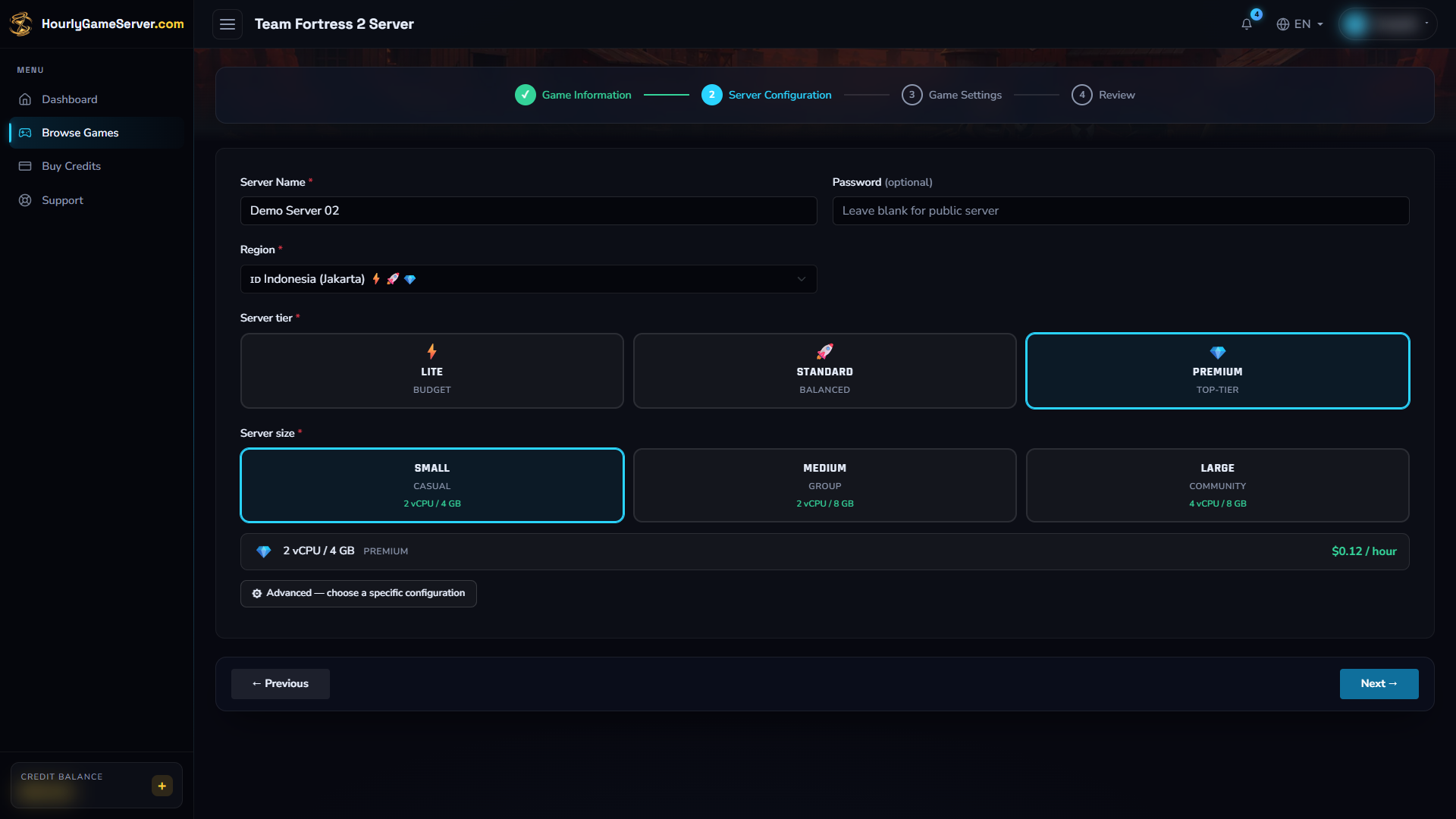
Choose hosting to suit your players' location and match workload. The illustrated selections demonstrate the form, not a required or universally recommended configuration.
Configure maps and team rules
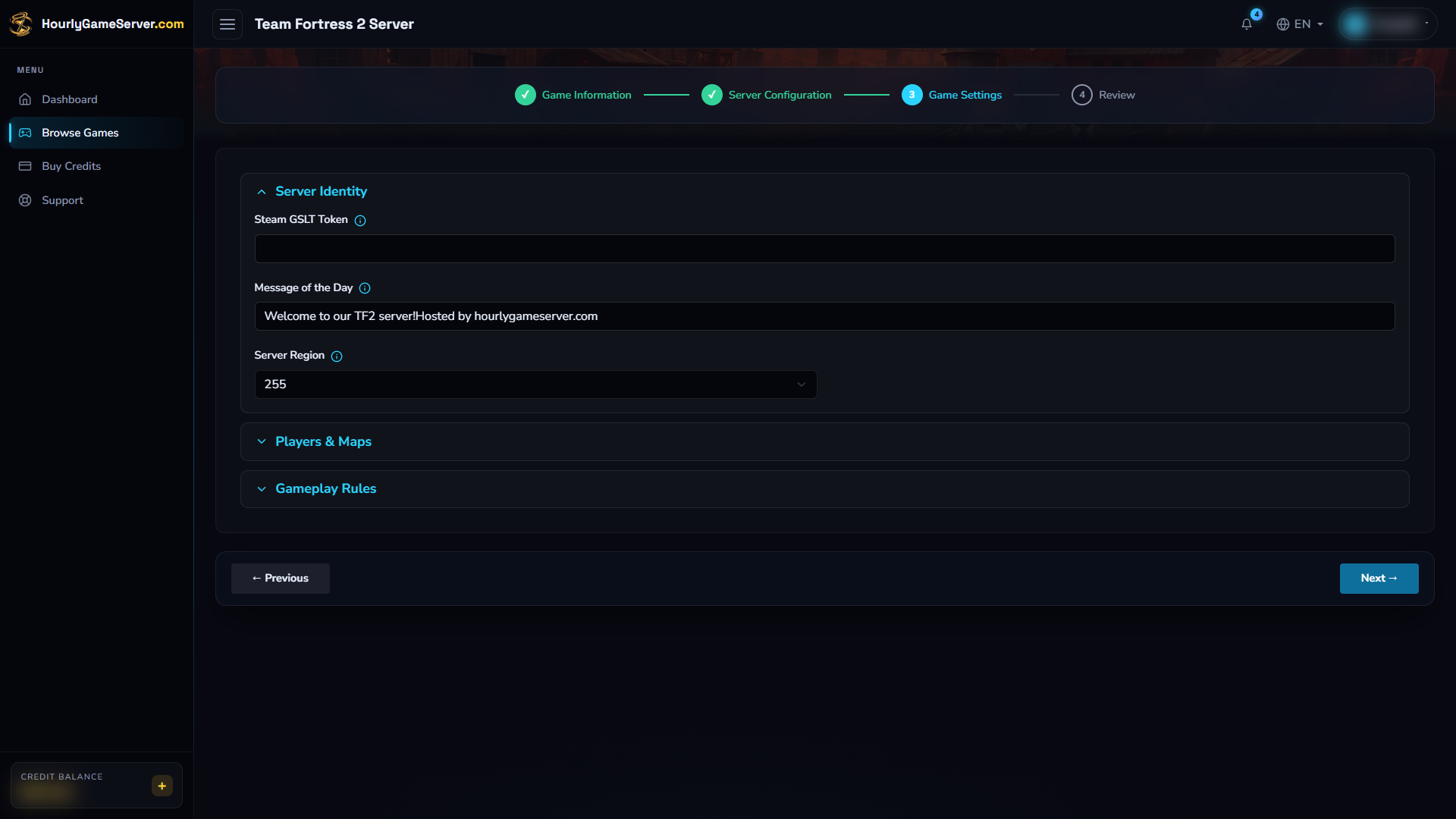
The example leaves the token empty. For public browser advertising, enter a Steam GSLT Token for App ID 440 before creation, then expand the remaining groups to review the match settings.
| Setting | Default and choices | Effect |
|---|---|---|
| Message of the Day | Welcome message with the hosting name | Replace it with your community greeting or rules. |
| Server Region | 255 (World) |
Browser region code, not the physical hosting region. |
| Max Players | 24; range 4–32 | Maximum player slots. Choose a realistic limit for your size and mode. |
| Start Map | ctf_2fort |
First map loaded on startup. |
| Map Cycle | Stock CTF | Choose Stock CTF, Stock Payload, Stock Control Points, Stock King of the Hill, Stock Arena, or Stock Mann vs. Machine. |
| All Talk | Off | Allows voice communication between teams. |
| Friendly Fire | Off | Allows teammates to damage one another when enabled. |
| Tournament Mode | Off | Enables TF2's tournament rules; it does not install league configurations or admin plugins. |
| Random Crits | On | Controls random weapon critical hits, not every source of critical damage. |
| Instant Respawn | Off | Removes normal respawn waiting when enabled, subject to the game mode. |
Browser region codes are 0 US East, 1 US West, 2 South America, 3 Europe, 4 Asia, 5 Australia, 6 Middle East, 7 Africa, and 255 World.
Choose a starting map that matches the intended cycle: for example, pl_badwater with
Stock Payload, or koth_viaduct with Stock King of the Hill. Selecting a cycle does
not replace the separate Start Map choice. Stock rotations contain official maps;
custom Workshop rotations and bot configuration are not exposed in this form.
Choosing an MvM map does not make the server an official Mann Up server or promise official matchmaking rewards.
Apply changes safely
- Warn players before interrupting their match.
- Select Stop and wait for Stopped.
- Open Game Settings, edit the appropriate sections, and select Save Settings.
- After confirmation, select Start and wait for Running.
- Rejoin and verify the starting map, password, and rules.
Saving alone does not restart a live match. A stop/start disconnects players; it is not a mid-round pause-and-resume feature. To change hosting region, tier, or size, use Server Settings instead.
Connect and invite players
Copy the current Domain Name or IP Address from the server's Overview. In TF2, open Options → Keyboard → Advanced and enable the developer console. Open it with the assigned key, normally ~, and enter:
connect ADDRESS:27015
Replace ADDRESS with the copied domain or IP, without https://. Normal players use
UDP 27015. If a join password is configured, enter it when prompted, or privately run
password "YOUR_JOIN_PASSWORD" before connecting.
You can also use TF2's community server browser and search for the server name. Browser advertising needs a valid GSLT and may take time to appear. Use direct connection to separate a listing problem from a connection problem.
The UDP 27020 SourceTV connection is for spectators, not normal player slots. It is separate from the game connection; use 27015 when inviting people to play.
Player management and mods
Authorized users can use Player Management while the server is running to list connected players, Kick, Ban, Unban, and send broadcasts. A kick ends the current connection; a ban remains until removed. Verify the player identifier before confirming a moderation action.
Make Admin is not supported for TF2 here. Website permissions and in-game administrator rights are different. There is no Mods section or supported SourceMod/MetaMod installation workflow in the app. Do not assume an external RCON client or a plugin mentioned in a general TF2 hosting tutorial is available on your hosted instance.
Troubleshooting
- Not listed in the browser: verify the GSLT is for App ID 440, has not expired or changed, and is not being reused on another server. Check browser filters and the Server Region code.
- Connection fails: wait for Running, recopy the address, use port 27015, and update TF2. Check the join password and any ban affecting that player.
- Unexpected first map: check Start Map as well as Map Cycle; a rotation choice is not a replacement for the first-map setting.
- Rules did not change: stop, save, and start again. Tournament or mode-specific behavior can affect what you observe.
- Players are missing from the list or actions fail: allow startup to complete and check your permission to manage players. Refresh the list before targeting a player who reconnected.
- Busy matches lag: examine CPU and Memory, reduce the player limit, or choose a larger size.
Contact support if these checks do not help. Include the server name, time, and the visible error, but never a GSLT or join password.