Factorio
Before you begin
Create a Factorio server for a shared factory, then use this guide to configure its rules, connect, and manage mods and players.
- Every player needs a licensed Factorio client with the same game version and mod versions as the server. Use a signed-in Factorio account for multiplayer verification.
- This guide covers the desktop client. Do not assume a console edition can join the current server build or use its mods.
- Decide whether to play vanilla or Space Age before creating the world. Every player needs the paid expansion when Space Age is enabled.
- Sign in to hourlygameserver.com with enough credits for the displayed first hourly charge.
- If installing Mod Portal mods, prepare your own Factorio Username and Factorio Token from your Factorio profile. These are not the server's join password.
Choose a region and size
Choose a region close to the players, then compare available Server tier, Server size, CPU, Memory, and hourly price.
Small is a reasonable starting point for a new vanilla factory and a small group. Large factories, many active entities and enemies, and complex mods can require Medium or Large. Simulation workload matters more than player count alone; raising Max Players does not add processing capacity.
Check CPU and Memory on Overview during normal play. If the factory slows down as it grows, review mods and workload, then compare a larger size in Server Settings.
Create the server
- Choose Factorio in the games catalog and enter the creation wizard.
- On Server Configuration, enter Server Name and an optional Password. Choose region, tier, and size. Share the password privately with your group.
- In Game Settings, choose your map preset, player rules, autosaves, and expansion setting. Expand the collapsed groups to see all options.
- Leave Install Mods empty for vanilla play. If selecting mods, supply the required Factorio account details and check each project's compatibility.
- Check Review, including the hourly rate, then select Create Server once.
- Open the server in Console. Wait on Overview until Running and the connection details appear. If credits were insufficient and the server is Stopped, top up and select Start.
Hosting starts at the displayed hourly charge. Pause When Empty pauses the factory simulation, not the rented server or its billing.
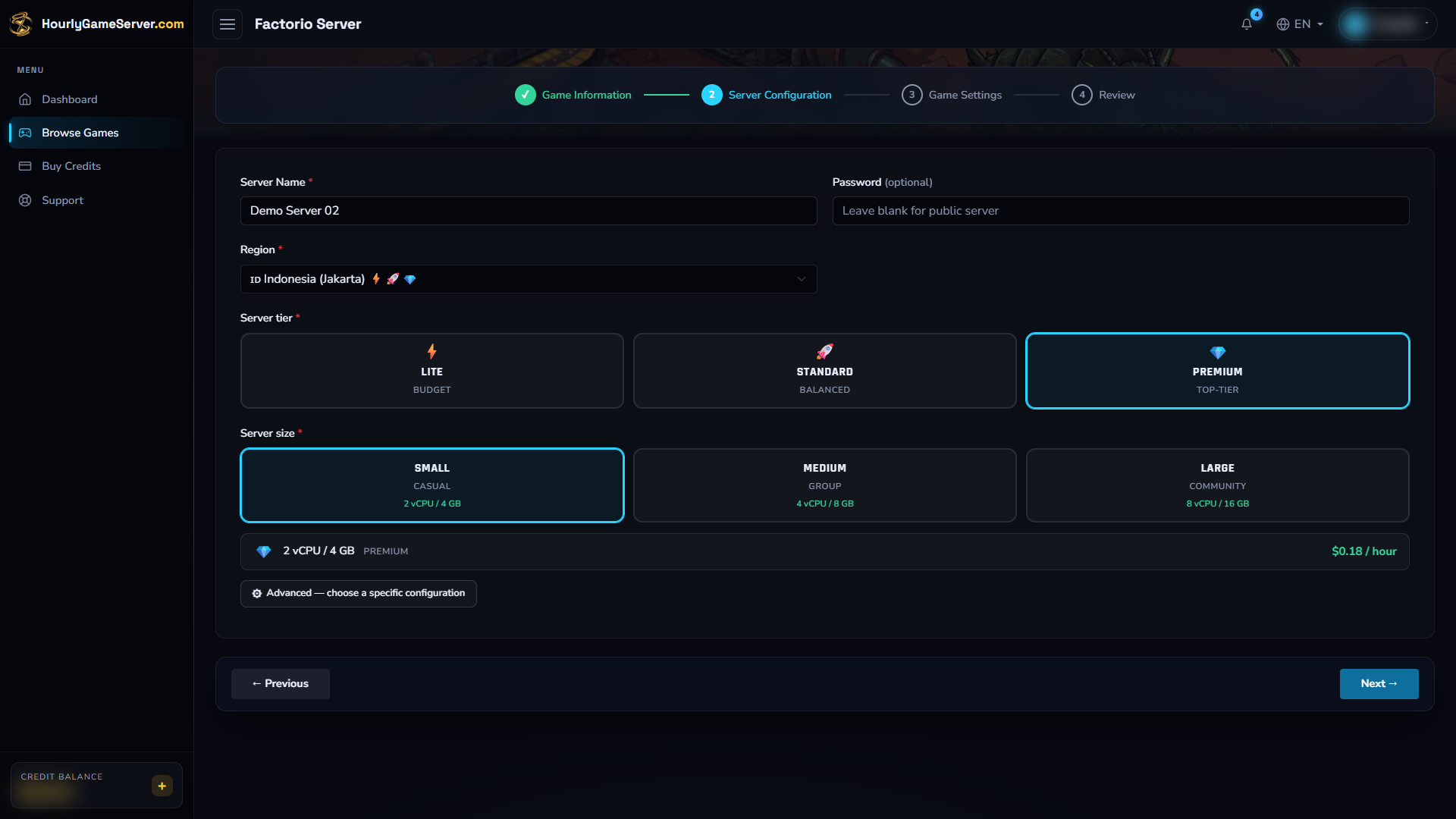
Compare resources and hourly cost before proceeding. Jakarta, Premium, and Small demonstrate the controls; your group's location and factory workload should determine the actual choice.
Choose game settings
These are the creation form's defaults and ranges. Existing servers display their saved choices.
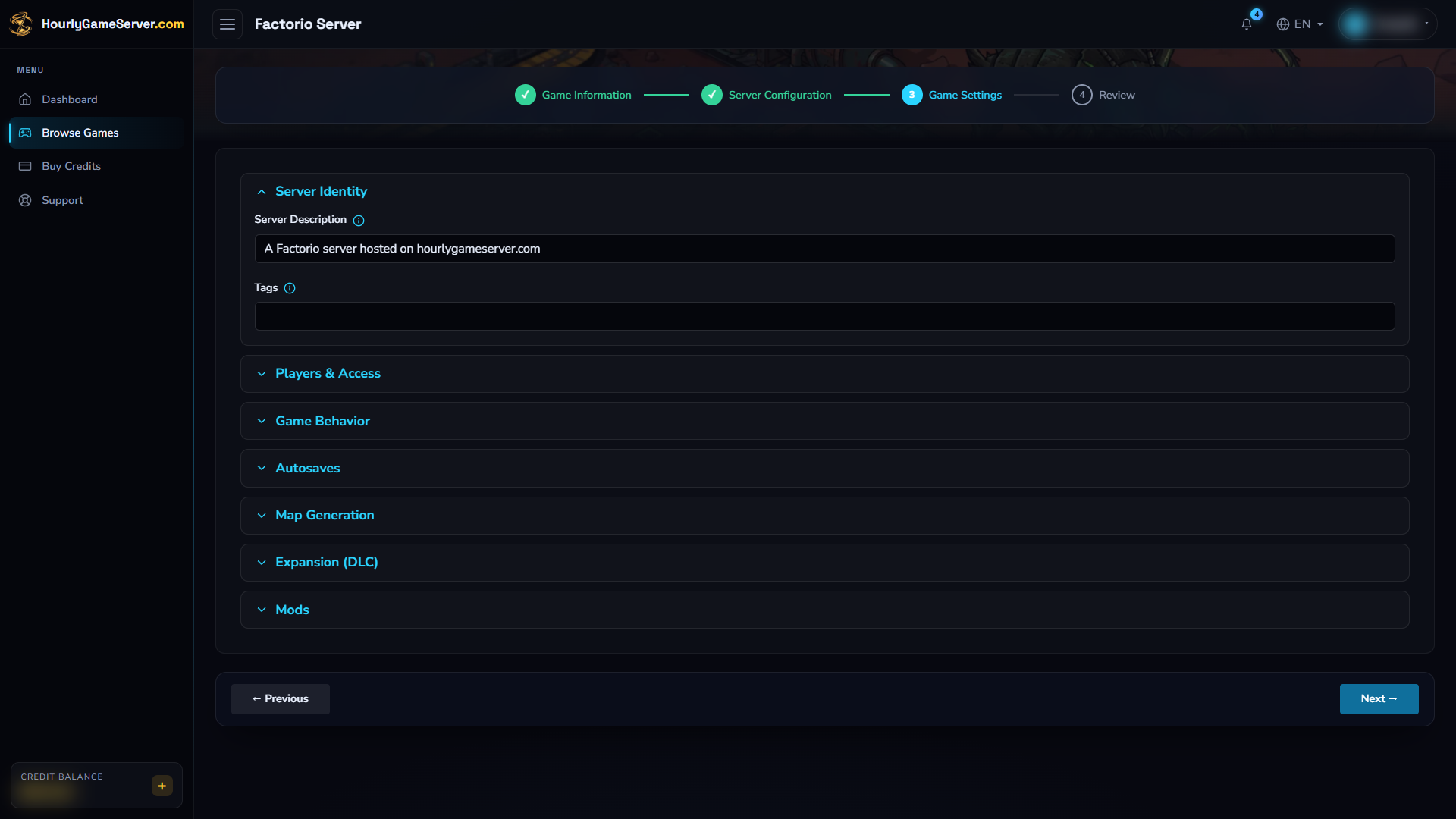
Server Identity contains the description and tags. Open Players & Access, Map Generation, Expansion (DLC), and Mods to check those choices before generating the world.
| Control | Defaults, choices, and guidance |
|---|---|
| Server Description | Default: A Factorio server hosted on hourlygameserver.com. Description associated with the multiplayer server. |
| Tags | Default: blank; comma-separated text. Short descriptors such as co-op, casual are useful when a server is listed. |
| Max Players | Default: 10; range 1–64. Maximum simultaneous connections. The form does not offer an unlimited setting. |
| Publish to Factorio Server Browser | Default: on. Requests public listing. Listing also needs valid service authentication; the toggle alone is not a guarantee. Use direct connection as the reliable joining method. |
| Allow Console Commands | Default: admins-only; also true, false. Determines who may run console commands. Keep administrator-only access unless your group has a reason to change it. |
| Pause When Empty | Default: on. Pauses the game when nobody is connected. Use Stop in Console to stop hosting charges. |
| Only Admins Can Pause | Default: off. When enabled, ordinary players cannot pause or unpause the game. |
| AFK Auto-kick (minutes) | Default: 0; range 0–240 in steps of 5. Zero disables idle kicking. |
| Autosave Interval (minutes) | Default: 10; range 1–60. Shorter intervals reduce the amount of recent progress at risk, but saving can interrupt a large factory. |
| Autosave Slots | Default: 5; range 1–20. Number of rotating autosaves; older slots are overwritten. |
| Map Preset | Default: default. Also rich-resources, marathon, death-world, death-world-marathon, ribbon-world, island. Applied when the initial map is created. |
| Enable Space Age DLC | Default: off. Runs the expansion only when enabled. All players must own it and use matching expansion content. |
Map Preset does not rebuild an existing factory. Choose it before the first start. Do not delete a save to test a different preset; use a separate server if you want a fresh world and account for its additional hosting cost.
Public browser discovery can be unavailable even with the publishing toggle on. Mod-download credentials are not a promise that browser registration is configured. You can give friends the connection address instead; contact support if listing is important to your group.
Plan Space Age before the first start
Leave Enable Space Age DLC off for base-game play. Turning it on enables the expansion content, including Space Age, Quality, and Elevated Rails. A player who owns only the base game cannot join that configuration.
Treat the DLC choice as part of world creation. Changing it later is not a supported one-click conversion of an existing save, and can require a fresh world. Preserve important progress and contact support before changing an established factory's expansion choice. Do not use deleting the server as a trial-and-error fix.
Save and apply changes
- Warn connected players, select Stop, and wait for Stopped.
- Open Game Settings, edit the relevant values, then select Save Settings.
- Select Start, wait for Running, and join to confirm the settings.
A saved change does not start a stopped server. Wait until startup or shutdown has finished before editing. Shared-server users need the permission to manage game settings.
Autosaves are rotating game saves, not a promise of a customer-selectable restore history. Read Save Data and Backups before making major world or mod changes.
Connect to the factory
- Once the server is Running, copy its Domain Name or IP Address from Console.
- Open the matching Factorio version and choose Multiplayer > Connect to address.
- Enter
play.example.com:34197, replacingplay.example.comwith the copied address. Do not addhttp://orhttps://. - Enter the server password if prompted. Do not enter your Mod Portal token here.
- If Factorio offers to synchronize mods, review the changes and follow its prompts before reconnecting. Game versions and mod versions must match.
If public listing is available, Browse public games provides another route. It is not
necessary for direct joining. Factorio uses UDP port 34197; allow the game through your own
firewall rather than changing your home router into a game server. The
official multiplayer guide covers these client options.
Manage mods
Use Install Mods during creation or Mods on the server page to select projects from the Factorio Mod Portal.
- Search by title or paste a Mod Portal link. If a broad search misses the project, use its
exact internal name from the URL after
/mod/. - Check the supported Factorio version, required dependencies, and any expansion requirements. Add the dependencies the project requires; do not assume a search result guarantees a complete compatible mod set.
- Enter Factorio Username and Factorio Token when prompted. Sign in to your Factorio profile to obtain the token. Keep it secret, and never put it in chat, a description, or a support screenshot.
- Select Save Mods. While Stopped, changes apply at the next start. Saving changes while Running requires Save & Restart, which disconnects players.
- Reconnect with the matching client mods after the server finishes installing them.
Leave a masked saved credential field blank to keep its current value. If downloads fail, check the account details and access to the selected mods. Adding, updating, or removing mods can change the save; proceed gradually and preserve important worlds.
Manage players and administrators
Open Player Management while the server is Running. Factorio uses the in-game username as the player identifier, not a Steam ID.
- Kick disconnects a player; Ban prevents them returning until Unban.
- Make Admin grants Factorio administrator rights.
- Broadcast Message sends an announcement to connected players.
Confirm the intended username before acting. The online list may take a short time to refresh. Game administrator rights do not grant access to hosting controls or billing; website roles remain separate.
Factorio distinguishes normal moderation from scripting and cheat commands. Its built-in moderation commands and announcements do not themselves disable achievements, while scripting or cheat commands can disable them for the save. See the official console reference; avoid unrestricted commands if your group wants to preserve achievement eligibility.
Troubleshooting
| Symptom | What to check |
|---|---|
| Cannot find the server in the browser | Try Multiplayer > Connect to address. The publishing toggle alone cannot ensure listing. |
| Cannot connect to the address | Wait for Running, recopy the current address, use port 34197, and check the password and local firewall. |
| Version or mod mismatch | Match the exact game version and mod versions; check whether the server requires Space Age. |
| A friend cannot join after enabling DLC | Every player needs the expansion. Do not repeatedly toggle DLC on an established save to troubleshoot. |
| Mod downloads fail | Check Factorio username/token, mod compatibility, required dependencies, and expansion requirements. Never send the token to other players. |
| Map preset has no visible effect | A saved factory already exists. Presets affect the initial map, not a rebuild of current terrain. |
| Factory slows down or saves cause pauses | Examine CPU/Memory, factory complexity, and mods. Consider a larger size and a suitable autosave interval. |
| Factory pauses when everyone leaves | This is expected with Pause When Empty enabled. Billing continues until you stop the server. |
For persistent problems, open support from the server page and include the approximate time, exact error, game version, and recent mod changes. Exclude passwords and account tokens.